
Search Everywhere and shortcuts
TableCraft follows DataGrip’s keymap, and every command can also be found by name.
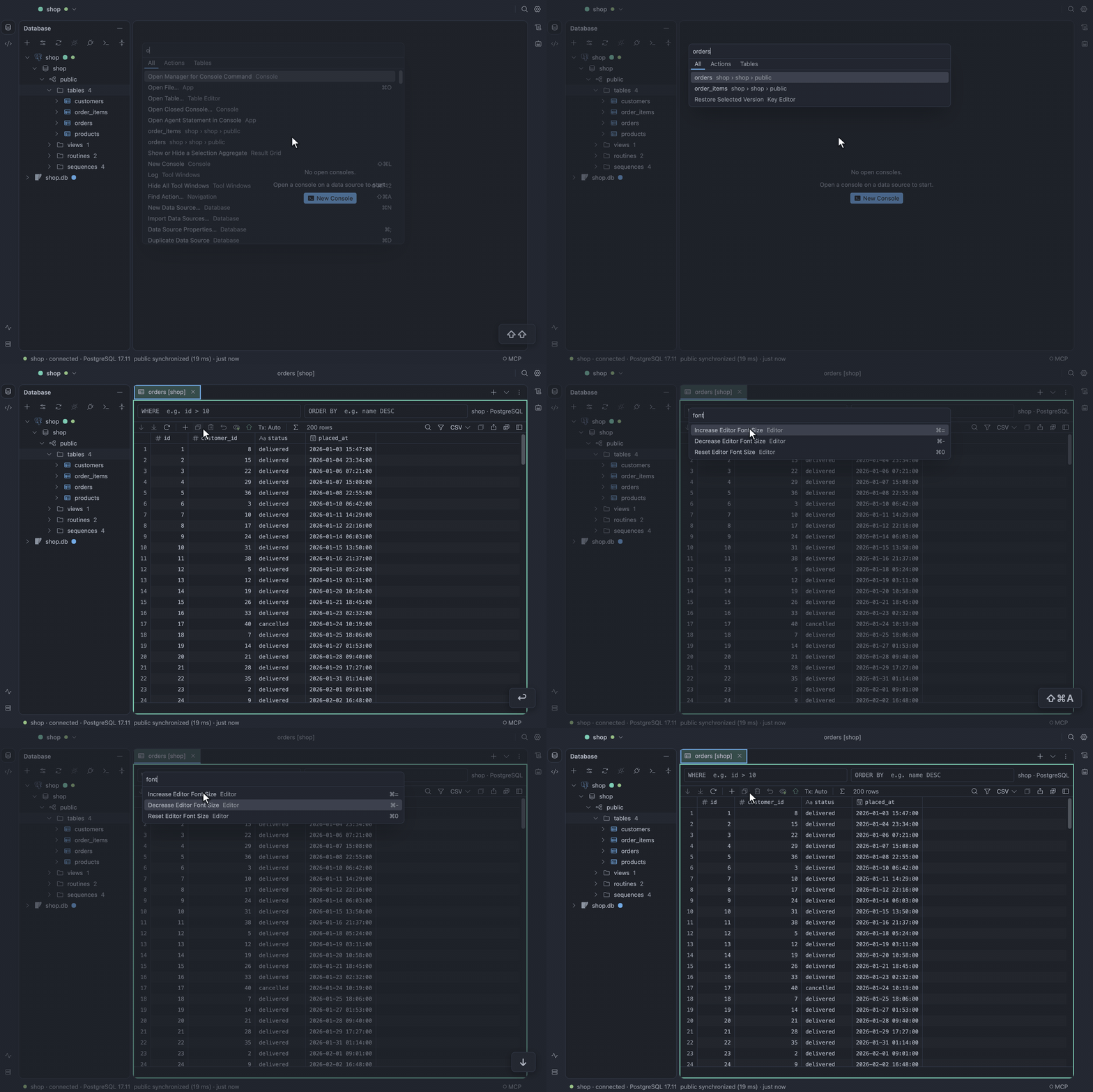
Search Everywhere
Section titled “Search Everywhere”Press ⇧⇧ to search tables and actions together, or Tab to the Tables or Actions tab;
↩ on a table opens its data. Find Action (⇧⌘A) lists every command with its shortcut, so
nothing is only reachable by a chord.
See Shell and actions.
Keymap
Section titled “Keymap”Settings → Keymap lists every action with its shortcuts, grouped by category.
Find an action or a chord
Section titled “Find an action or a chord”To find an action, type part of its name or category. To see which actions hold a chord, turn on Find by Shortcut (the keyboard button) and press the chord.
Change a shortcut
Section titled “Change a shortcut”- Open Settings → Keymap and find the action.
- Click + on its row and press the chord you want. Escape cancels.
- If another action holds the chord where both could fire, the page names it. Click Reassign to take the chord from it.
The chord applies at once, to the menus, tooltips and Find Action too.
A chord needs ⌘, ⌃ or ⌥ (Ctrl or Alt on Windows and Linux) unless it is an F key. Chords
the system or the app menu keep, such as ⌘Q or Alt+F4, are refused with the reason. The SQL
editor keeps its own keys while it has focus, such as ⌘D for Select Next Occurrence; a shortcut on
one of them works everywhere else, and the page says so.
Remove or restore a shortcut
Section titled “Remove or restore a shortcut”The X on a chord removes it, so an action can have several shortcuts or none. A changed action is marked Modified, with a button that puts it back; Restore Defaults puts back every one.
Use the page from the keyboard
Section titled “Use the page from the keyboard”Tab reaches the list, the arrow keys move between rows, Enter records a shortcut and Delete removes the row’s last one.
Find the shortcuts file
Section titled “Find the shortcuts file”The shortcuts live in keymap in settings.json, which lists only the
ones you changed; the table below shows the defaults.
Keyboard shortcuts
Section titled “Keyboard shortcuts”| Action | macOS | Windows / Linux |
|---|---|---|
| Run | ⌘↩ |
Ctrl+Enter |
| Run All | ⇧⌘↩ |
Ctrl+Shift+Enter |
| Explain Plan | ⇧⌘E |
Ctrl+Shift+E |
| Next Error | F2 |
F2 |
| Previous Error | ⇧F2 |
Shift+F2 |
| Show Context Actions | ⌥↩ |
Alt+Enter |
| Commit | ⌥⇧⌘↩ |
Ctrl+Alt+Shift+Enter |
| Reformat Code | ⌥⌘L |
Ctrl+Alt+L |
| New Console | ⇧⌘L |
Ctrl+Shift+L |
| Open File… | ⌘O |
Ctrl+O |
| Save | ⌘S |
Ctrl+S |
| Save As… | ⇧⌘S |
Ctrl+Shift+S |
| Close Tab | ⌘W |
Ctrl+W |
| Reopen Closed Tab | ⇧⌘T |
Ctrl+Shift+T |
| Select Next Tab | ⇧⌘] |
Ctrl+Shift+] |
| Select Previous Tab | ⇧⌘[ |
Ctrl+Shift+[ |
| Database | ⌘1 |
Ctrl+1 |
| Services | ⌘8 |
Ctrl+8 |
| Hide All Tool Windows | ⇧⌘F12 |
Ctrl+Shift+F12 |
| Search Everywhere | ⇧⇧ |
Double Shift |
| Find Action… | ⇧⌘A |
Ctrl+Shift+A |
| New Data Source… | ⌘N |
Ctrl+N |
| Data Source Properties… | ⌘; |
Ctrl+; |
| Disconnect | ⌘F2 |
Ctrl+F2 |
| Move Up | ⌥⇧↑ |
Alt+Shift+ArrowUp |
| Move Down | ⌥⇧↓ |
Alt+Shift+ArrowDown |
| Synchronize | ⌥⌘Y |
Ctrl+Alt+Y |
| Modify Table… | ⌘F6 |
Ctrl+F6 |
| Rename… | ⇧F6 |
Shift+F6 |
| Drop… | ⌘⌫ |
Ctrl+Backspace |
| Go to DDL | ⌘B |
Ctrl+B |
| Go to Declaration | ⌘B |
Ctrl+B |
| Open Key | ⌘B |
Ctrl+B |
| Parameter Info | ⌘P |
Ctrl+P |
| Quick Documentation | F1 |
F1 |
| Open Data | F4 |
F4 |
| SQL Generator… | ⌥⌘G |
Ctrl+Alt+G |
| Query History… | ⌥⌘E |
Ctrl+Alt+E |
| Preview Pending Changes | ⇧⌘P |
Ctrl+Shift+P |
| Submit | ⌘↩ |
Ctrl+Enter |
| Find in Console | ⌘F |
Ctrl+F |
| Replace in Console | ⌘R |
Ctrl+R |
| Find Next Occurrence | ⌘G |
Ctrl+G |
| Find Previous Occurrence | ⇧⌘G |
Ctrl+Shift+G |
| Replace All | ⌥⌘↩ |
Ctrl+Alt+Enter |
| Select All Occurrences | ⌥⇧⌘J |
Ctrl+Alt+Shift+J |
| Find in Result | ⌘F |
Ctrl+F |
| Transpose | ⌥⌘T |
Ctrl+Alt+T |
| Show Chart | ⌥⌘C |
Ctrl+Alt+C |
| Toggle JSON View | ⌥⌘J |
Ctrl+Alt+J |
| Toggle Boolean | Space |
Space |
| Settings… | ⌘, |
Ctrl+, |
| Increase Editor Font Size | ⌘= |
Ctrl+= |
| Decrease Editor Font Size | ⌘- |
Ctrl+- |
| Reset Editor Font Size | ⌘0 |
Ctrl+0 |
Find Action (⇧⌘A) lists every action with its shortcut; the specification’s
action table has the full keymap.