
Results and table data
The result grid shows what a statement returns, the table data editor changes a table’s rows in a tab of their own, and an import reads a file into a table.
Result grid
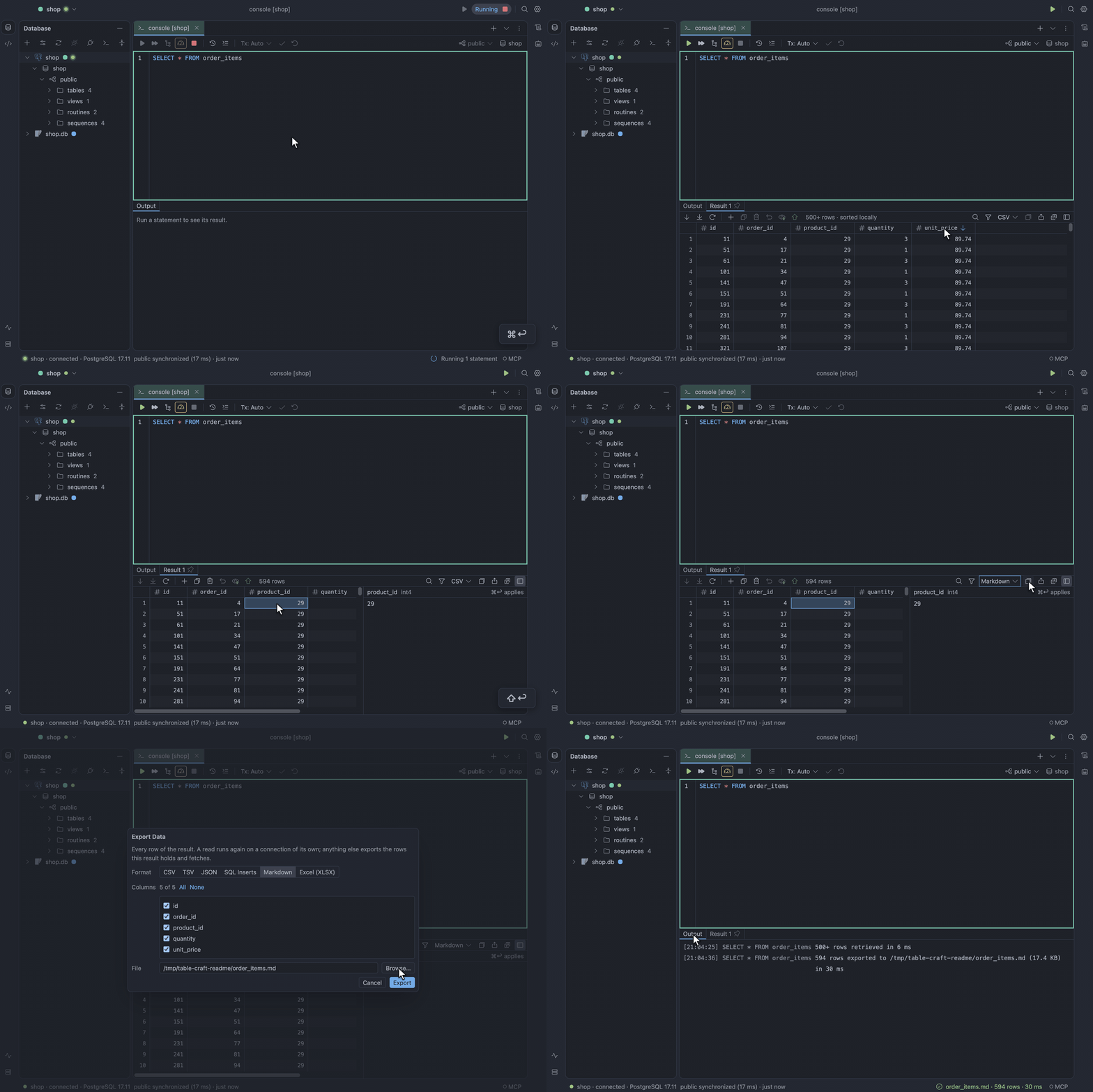
Section titled “Result grid”The grid shows the first page of a result, 500 rows by default.
Fetch more rows
Section titled “Fetch more rows”To read past the first page, click Fetch Next Page or Fetch All.
A plain SELECT carries the page size as a row limit in its SQL, so the server stops there. Both
buttons run it again with a larger limit, and the rows may differ if the query has no ORDER BY.
Other statements, and every statement once Row limit is off in Settings → Data Editor, keep
the cursor open and read on from it.
Sort rows
Section titled “Sort rows”Click a column header to sort ascending, click again for descending, and a third time to drop the
sort. ⌥-click another header to add a second key.
Open a value
Section titled “Open a value”To read long text or JSON, double-click a cell or press ⇧↩. The value panel opens. Drag its left
edge to widen it, and it keeps that width.
The panel shows JSON formatted and coloured. That covers a json or jsonb column, and a text
column whose value is a JSON object or array, such as a varchar holding
{"domain":"PAYMENT",…}. A muted line says the value is shown formatted and stored as is.
To see the exact stored text, click {} in the panel’s header or press ⌥⌘J (Toggle JSON
View). The column stays that way as you move between rows, until the next run. To open text raw
by default, turn off Detect JSON in text values in Settings → Data Editor.
A binary value’s panel saves the value to a file, loads a file into the cell, and draws the value when it holds a PNG, JPEG, GIF or WebP image.
Copy cells
Section titled “Copy cells”Copy on one cell copies its bare value. On more than one cell it uses the extractor you chose: CSV, TSV, JSON, SQL Inserts or Markdown.
Export a result
Section titled “Export a result”To export, choose Export Data… on a result or on a table in the Database pane. It writes any of the copy formats, or Excel (XLSX).
The export runs in the background and streams straight to disk, so a multi-gigabyte export uses flat memory. It never leaves a half-written file behind when the network drops, the disk fills or you cancel.
Follow an export
Section titled “Follow an export”While an export runs, the Exports chip in the status bar shows the file name, the rows written (or the percent, when the row count is known), a bar and a clock. Its red stop button cancels the export.
Click the chip to see every export of the session, each with its rows of the total, size, rows a second and time left when it can be told. Each has Cancel, Reveal, Retry or Remove, and Cancel All Exports stops several at once.
A finished export stays on the chip for a few seconds, and a failed one turns the chip red until you open it. The grid an export drains shows its rows, clock and a Cancel of its own, and Services lists the same tasks under Exports.
Find in the fetched rows
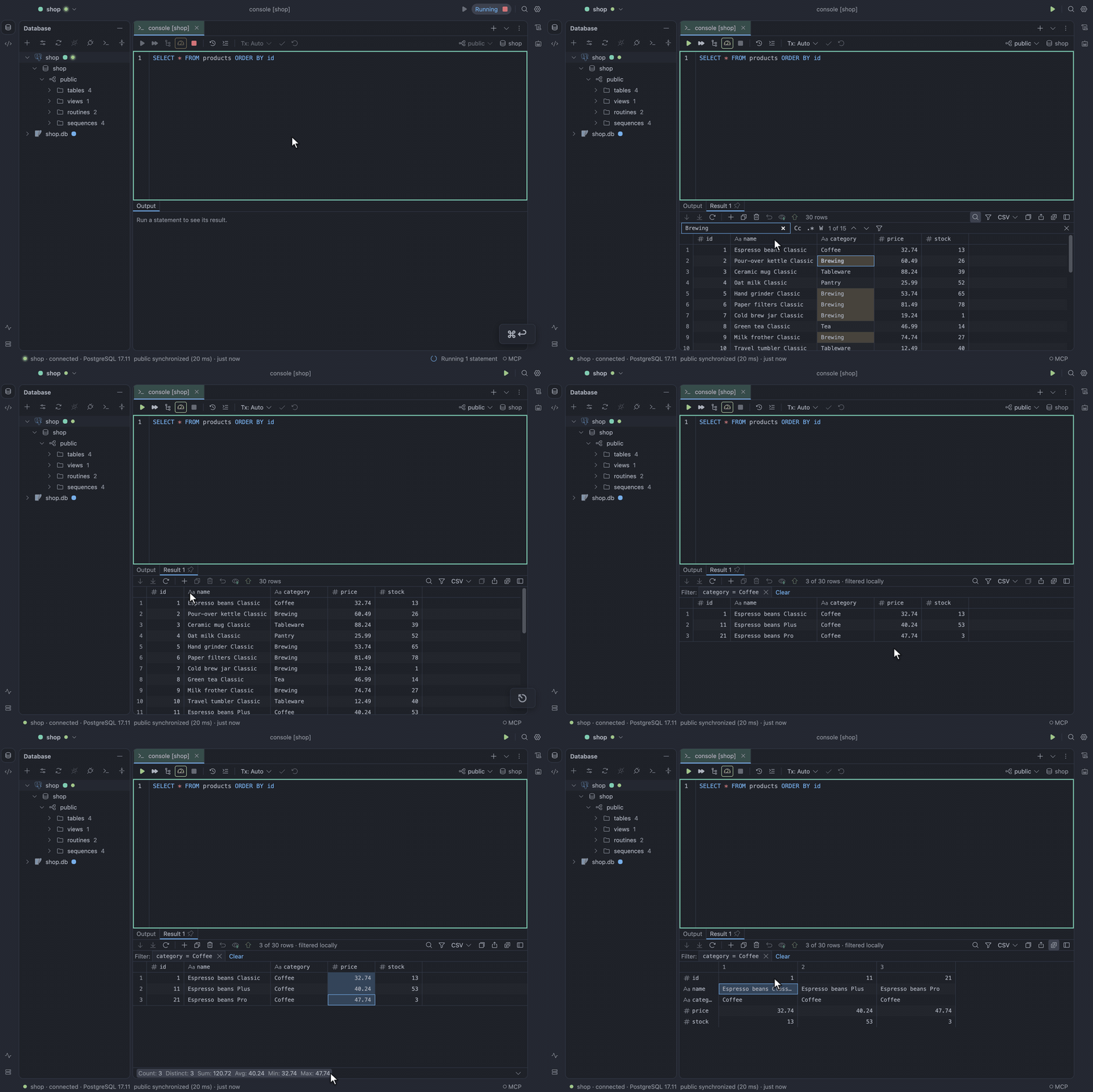
Section titled “Find in the fetched rows”- Click in the grid and choose Find in Result or press
⌘F. - Type what to find. Turn on Match Case, Regular Expression or Whole Cell if you need them.
- Press
↩and⇧↩to step through the matches. - Click Filter Rows to hide the rows without a match.
The search reads the cells as the grid draws them.
Filter by a cell’s value
Section titled “Filter by a cell’s value”A column header’s menu filters by the focused row’s value, excludes it, or keeps NULL or
non-NULL cells. Each filter shows as a chip you can remove.
Find and these filters run on the rows already fetched, and the grid says so. Search All Rows
fetches the rest. Copy takes the rows you see, and Export asks whether to write the visible rows or
the whole result. In the table editor this local filter sits beside the WHERE bar, which still
filters on the server.
Sum a selection
Section titled “Sum a selection”Select two or more cells. The line under the grid shows their count and distinct values and, for numbers, an exact sum, average, minimum and maximum. Click the line to copy it, and use its menu to pick which values show.
Transpose a row
Section titled “Transpose a row”To turn records into columns, choose Transpose or press ⌥⌘T. It helps with a wide row.
Draw a chart
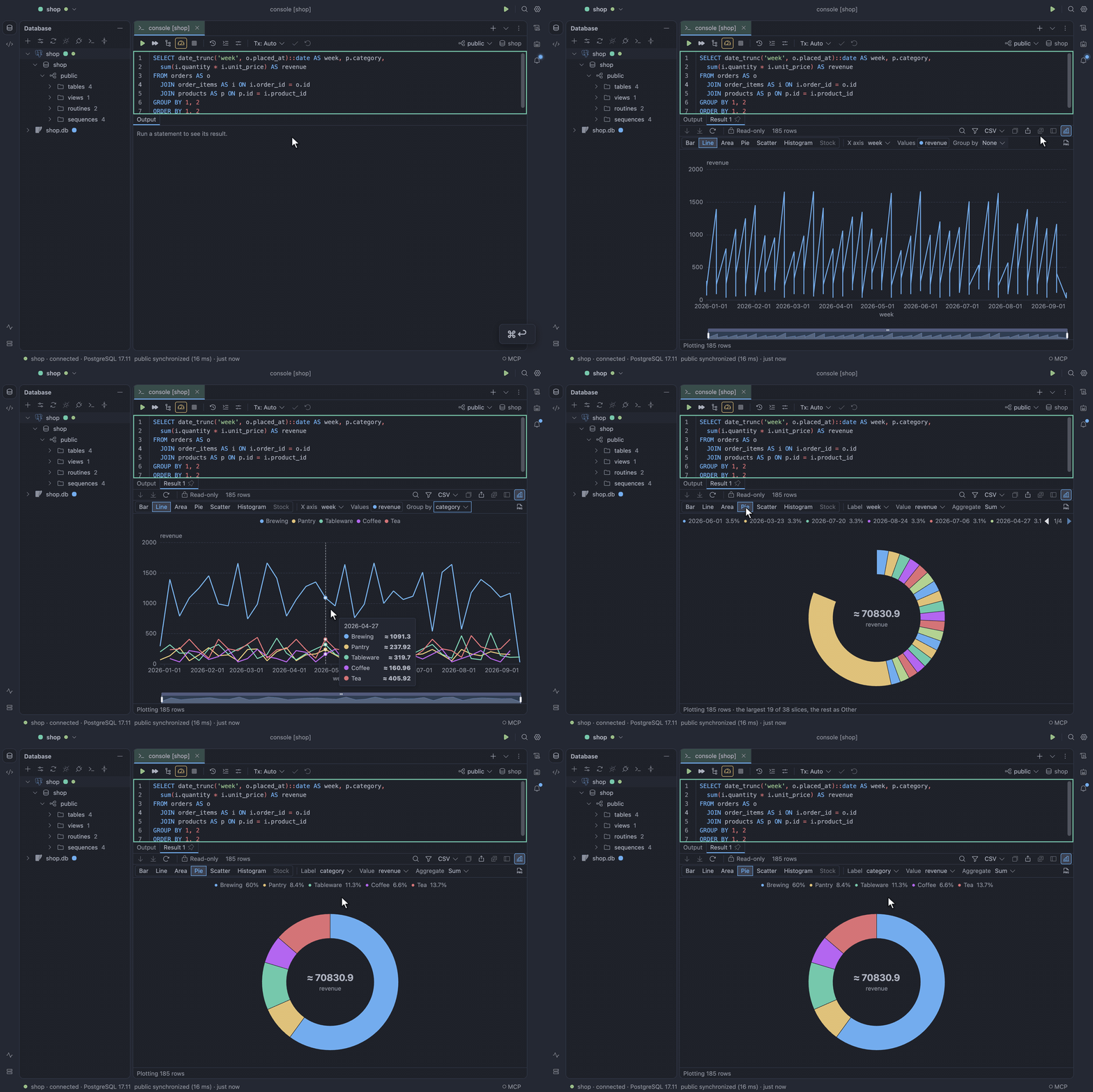
Section titled “Draw a chart”Choose Show Chart, click Chart in the grid’s toolbar, or press ⌥⌘C. The rows you have
fetched are drawn as a chart, in a console result and in the table editor alike.
TableCraft picks the kind from the columns:
- a date and a number: a line over time
- a text column and a number: a bar per value
- two numbers: a scatter
- one number: a histogram
- open, high, low and close columns beside a date: a stock chart
Change the chart
Section titled “Change the chart”The chart bar above the chart switches between Bar, Line, Area, Pie, Scatter, Histogram and Stock. It also picks:
- the X axis
- the values, where + Value adds a series
- a Group by column that splits the values into series
- how rows with the same label fold: sum, average, count, minimum or maximum
- a histogram’s bins
When the columns cannot draw a kind, pointing at it says what it needs.
The chart follows the grid. It plots the rows the grid shows, after its sort and local filter, and
redraws as you Fetch All. The line under it says how many rows it plots, whether more wait on
the server, and how many it skipped because the value was NULL or not a number.
Zoom a time or number axis with the wheel, then choose Reset Chart Zoom to go back. To save the drawing, click Export Chart as PNG… at the right of the chart bar. The chart keeps its settings when you rerun the statement, as long as its columns are still there, and takes the colours of the current theme.
See Result grid.
Table data editor
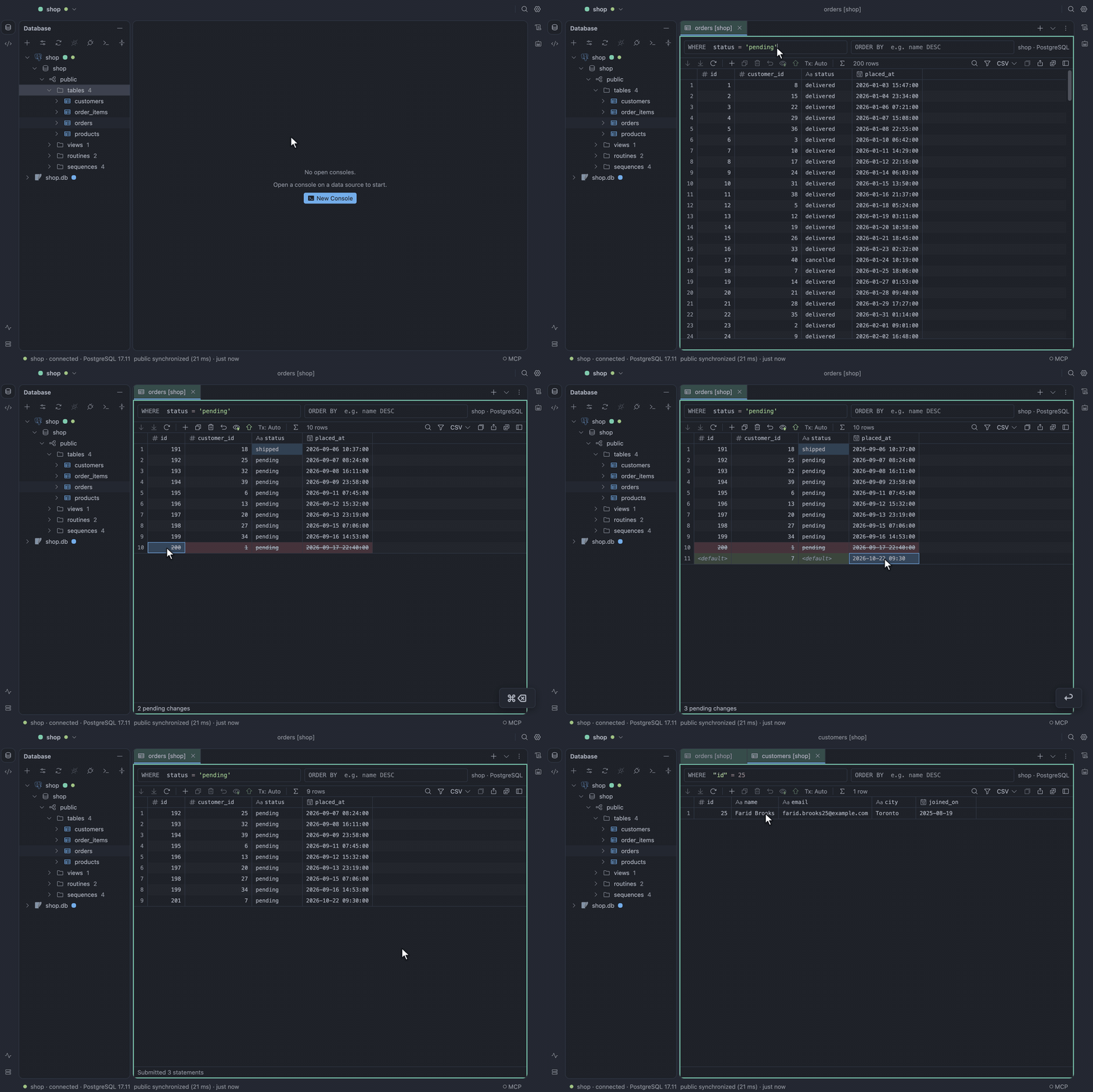
Section titled “Table data editor”Press F4 on a table to open its rows in a tab with a WHERE bar and an ORDER BY bar.
Edit rows
Section titled “Edit rows”- Edit cells in place, add rows with
⌘Nand delete them with⌘⌫. - Choose Preview Pending Changes or press
⇧⌘Pto read the SQL. - Click Submit or press
⌘↩.
Changes stay pending and highlighted until you submit. Submit runs them in one transaction. If any statement fails or touches more than one row, everything rolls back and your edits stay.
A boolean cell edits in a true/false/NULL list, and Space flips it. A date or timestamp cell has a
calendar picker beside its text, in the app’s theme, that you can drive with the mouse or the arrow
keys.
To open the row a foreign key points to, press ⌘B on its cell.
Edit a console result
Section titled “Edit a console result”A console result is editable when it reads one table and shows its primary key, as
SELECT * FROM orders WHERE … does. The same chords edit it, and Submit runs on the console’s
own session, so in manual commit mode your edits wait in its open transaction for Commit.
Joins, aggregates, DISTINCT and results without a key stay read-only, and the toolbar says why.
Computed columns in an editable result take no edits.
Edit JSON
Section titled “Edit JSON”The value panel edits JSON formatted too. A value stored compact is written back compact, with only
your change, and one stored indented is written as you typed it. Text that is no longer JSON is
saved as typed, under a Not valid JSON — saved as typed warning.
See Table data editor.
Import
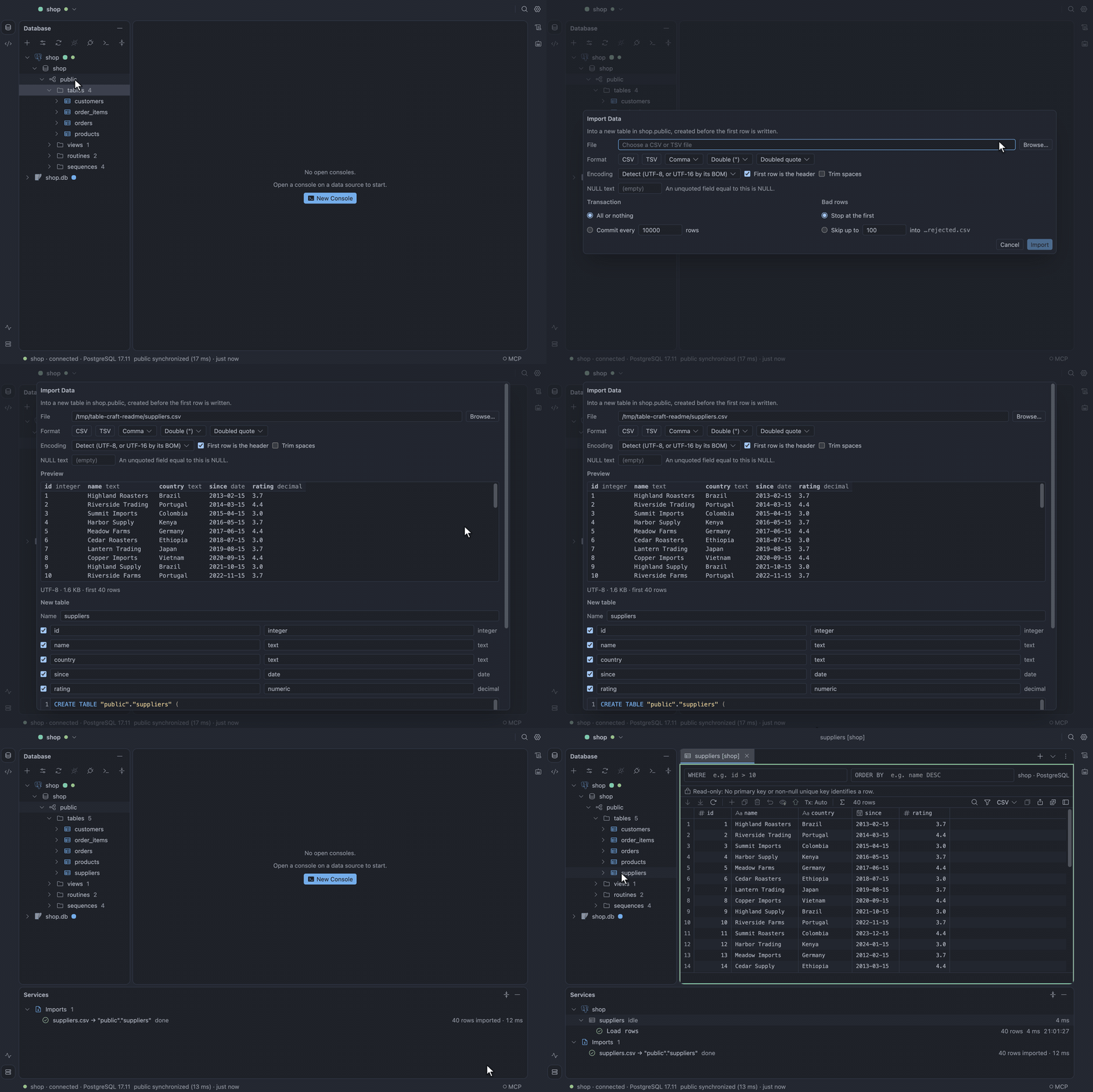
Section titled “Import”An import reads a CSV or TSV file into a table, or into a new one.
Import a file
Section titled “Import a file”- Choose Import Data from File… on a table, or Import Data into New Table… on a schema.
- Click Browse… and pick the file.
- Set the delimiter, quote, encoding (UTF-8 or UTF-16, detected by its BOM), header and NULL text. The preview shows the first rows with what you chose.
- Check how the columns map, by name. For a new table, check the column types it inferred and the
CREATE TABLEit shows. - Click Import.
The import runs in the background under Imports in Services. The file is streamed, so a multi-gigabyte import uses flat memory.
Choose what happens on a failure
Section titled “Choose what happens on a failure”By default an import is all or nothing: a bad row, a cancel or a dropped connection rolls everything back.
- Commit every N rows: keeps what was written, and Resume carries on from the first row that was not. Use it when a large file should not start over after a dropped connection.
- Skip up to N rows: sets bad rows aside in
<file>.rejected.csv, with the reason for each. Use it when a few bad rows should not stop the rest.
See Import.