Plugins
A plugin is a folder with a table-craft-plugin.json manifest and an ES module. The built-in
plugins ship inside the app, TableCraft offers others to
download on demand, and your own go in plugins/<id>/ in
the profile folder, where they load the same way. One that fails to load is
listed as unavailable with the reason. The app keeps running.
Databases in the box and on demand
Section titled “Databases in the box and on demand”SQLite and MySQL (with MariaDB and TiDB) ship inside the app and work offline from the first launch. The other databases are plugins TableCraft downloads from npm when you need them (decision 108, decision 156):
- PostgreSQL, about 190 KB, as
@tablecraft-app/plugin-postgres. - Redis, about 290 KB, as
@tablecraft-app/plugin-redis. - Oracle, about 360 KB, as
@tablecraft-app/plugin-oracle. - SQL Server (2017 and later, and Azure SQL), about 760 KB, as
@tablecraft-app/plugin-mssql. - etcd (3.5 and later), about 400 KB, as
@tablecraft-app/plugin-etcd. See etcd. - DuckDB, about 29 MB because it carries DuckDB itself, as
@tablecraft-app/plugin-duckdbfollowed by the system, such as@tablecraft-app/plugin-duckdb-darwin-arm64, for macOS, Windows and Linux on x64 and arm64. See DuckDB. - Apache Kafka, about 1.2 MB, as
@tablecraft-app/plugin-kafka. See Apache Kafka. - Elasticsearch and OpenSearch, about 200 KB, as
@tablecraft-app/plugin-elasticsearch. See Elasticsearch and OpenSearch.
Download a plugin
Section titled “Download a plugin”Data Sources + lists PostgreSQL, Redis, Oracle, SQL Server, etcd, DuckDB, Apache Kafka and Elasticsearch with Download. Choose one to see the download’s progress, then the connection form.
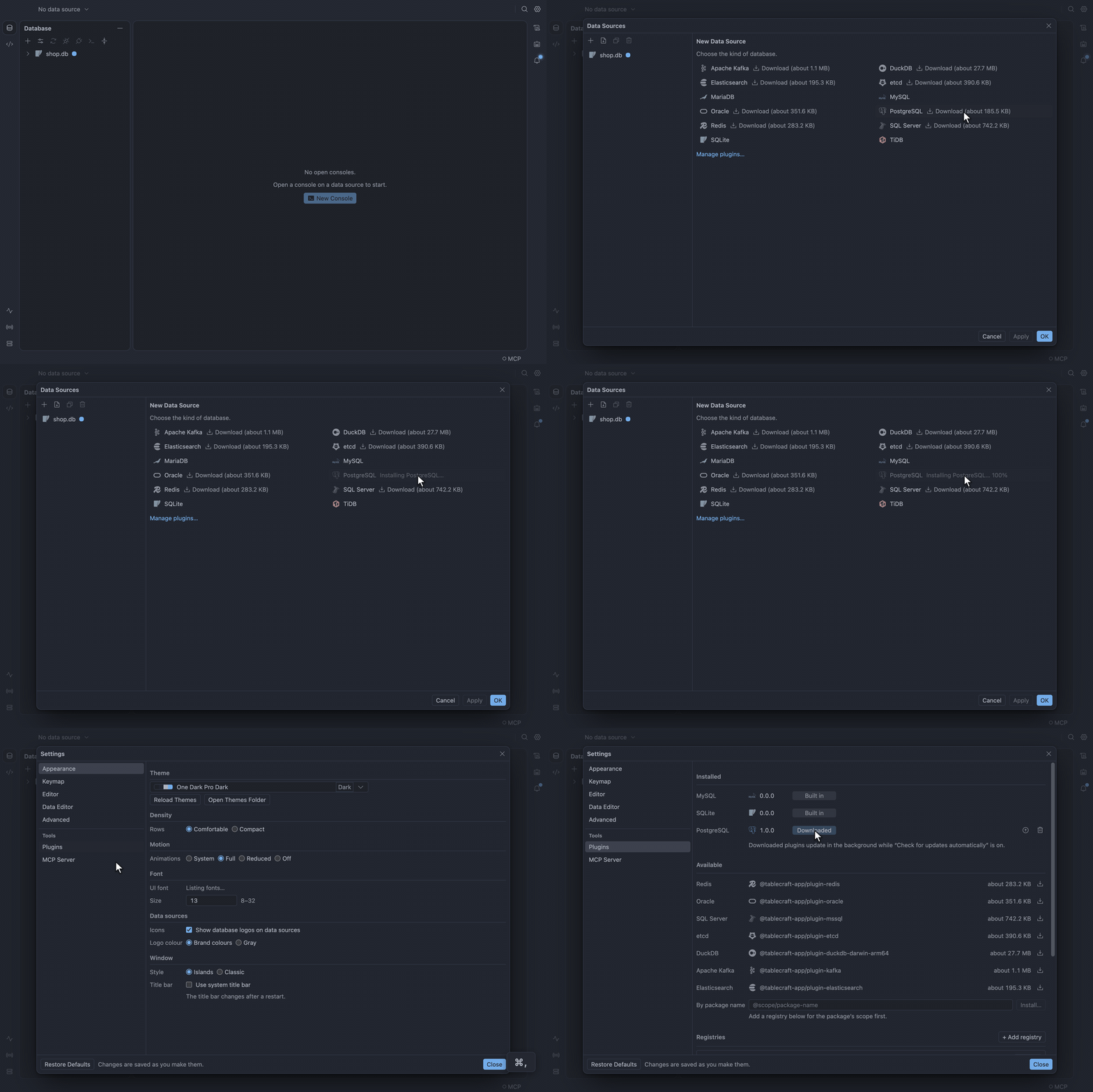
TableCraft installs the newest release its plugin API accepts, and refuses a download whose sha512
does not match the registry’s. It keeps each version in managed-plugins/ in the profile folder
(decision 110). To get beta
versions too, check Get beta versions in Settings → Advanced.
Install a missing plugin
Section titled “Install a missing plugin”A saved data source whose plugin is missing shows greyed in the Database pane with Install. Click Install. The data source shows Installing… with the download’s progress, and Retry if it fails.
After an update from a version that had PostgreSQL built in, TableCraft installs it in the background on the first start, with no question.
Update a plugin built for an older API
Section titled “Update a plugin built for an older API”A downloaded plugin built for an older plugin API than this TableCraft cannot run, so it is treated as missing. TableCraft downloads the build for this version as soon as it starts, even with automatic checks off, and the data source shows Updating…. Connecting waits for it.
- If the download fails, the data source shows Update failed with Retry, and connecting says the plugin must be updated.
- A plugin you built or installed from a file is left alone, and listed as unavailable until you rebuild it.
A plugin built for a newer plugin API shows Needs a newer TableCraft, with Check for Updates.
Manage plugins
Section titled “Manage plugins”Settings → Plugins lists three kinds of plugin:
- Built-in plugins ship with TableCraft.
- Downloaded plugins show their version, Update and Remove. Remove is refused while a data source uses the plugin, and names it.
- Your own plugins show Remove, which moves the plugin’s folder to the Trash. A copy of your own that a downloaded plugin of the same id shadows can always be removed.
With Check for updates automatically on, downloaded plugins are checked every 2 hours, and a newer compatible version is used from the next connection.
Install from a file
Section titled “Install from a file”Offline or behind a firewall, use the plugin .tgz files every release attaches.
- Open Settings → Plugins.
- Choose Install from File… and pick the file.
- Confirm the install.
TableCraft asks before installing any file. It refuses a DuckDB file built for another system, and names the one to pick.
Use a corporate npm mirror
Section titled “Use a corporate npm mirror”Behind a corporate npm mirror, set its address in Settings → Plugins (plugins.registryUrl).
Private registries
Section titled “Private registries”A plugin your company publishes to its own npm registry, such as GitLab’s package registry, installs from there by its scope, while official plugins keep coming from npm. How routing, tokens and checksums work is in decision 158.
Add a registry
Section titled “Add a registry”- In Settings → Plugins → Registries, choose + Add registry.
- Fill in a name and the registry’s npm address, such as
https://gitlab.example.com/api/v4/packages/npm. - Fill in its scopes, such as
@acme, and a token. For GitLab, use a personal or group access token withread_api. - Click Test connection to check the address and the token.
- Click Save.
The registry shows as a card. A scope belongs to one registry, and @tablecraft-app always comes
from npm.
The token is kept encrypted by the system keychain, never in settings.json, and never shown again.
TableCraft sends it only to the registry’s own host: a download that leaves it goes without the
token.
Install a plugin from a registry
Section titled “Install a plugin from a registry”- Under Available, type the package name, such as
@acme/tablecraft-plugin-example. - Choose Install….
- Read what the plugin adds, and confirm.
TableCraft picks the newest version this TableCraft can run, and asks once before installing a package from a private registry. Updates come from the same registry without asking again.
GitLab publishes only a sha-1 checksum, which TableCraft checks for a private registry. A package from npm still needs its sha512.
Replace a refused token
Section titled “Replace a refused token”A refused token turns the registry’s card red. Paste a new one there.
Remove a registry
Section titled “Remove a registry”Removing a registry forgets its token and keeps its plugins installed, but they stop updating.
To write a plugin of your own, see Writing plugins.