
Apache Kafka
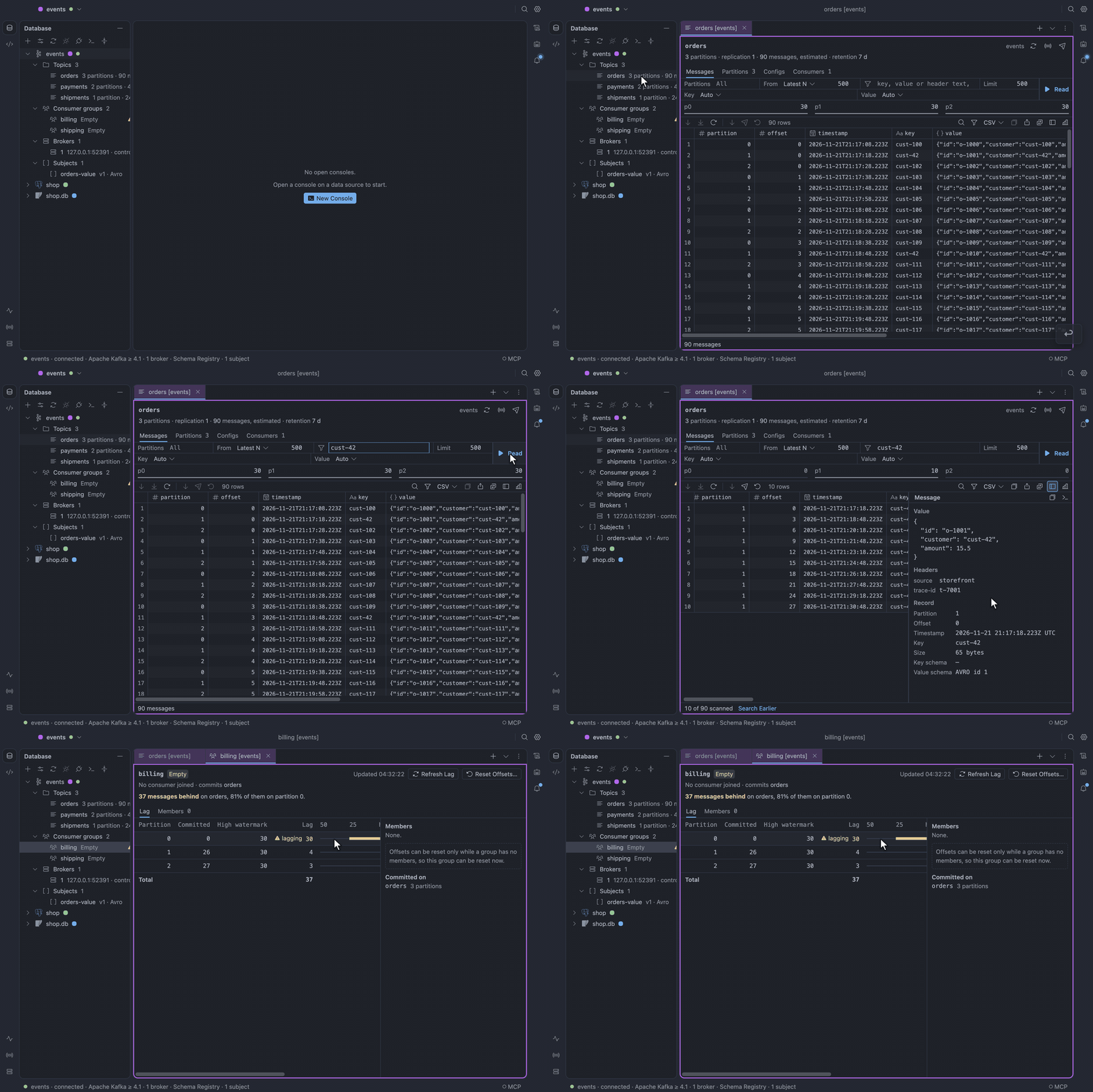
The Kafka plugin downloads the first time you add a Kafka data
source. Topics, consumer groups, brokers and
Schema Registry subjects list in the Database pane. A topic opens in a tab that reads its messages,
a group in a tab that shows its lag, and the console takes kcat-shaped commands. See
decision 169 and
decision 171 for the
design.
Connect
Section titled “Connect”List the Bootstrap servers (host:port, comma separated) and pick the Security protocol:
PLAINTEXT.SSL: TLS, with a client certificate for mutual TLS.SASL_PLAINTEXTorSASL_SSL, with SASLPLAIN,SCRAM-SHA-256orSCRAM-SHA-512.
A Schema Registry URL, with basic authentication if it asks for one, lets TableCraft decode and encode Avro, Protobuf and JSON Schema messages.
On connect, TableCraft checks that the brokers answer the requests it needs, and names the missing one when they do not.
List only some topics
Section titled “List only some topics”On a cluster shared by many teams, fill in the advanced Name filter with globs separated by
commas, such as orders.*, payments.*. The tree then lists only the topics, consumer groups and
subjects whose names match. A console command or a tab opened by name still reaches any of them.
Database tree
Section titled “Database tree”The tree has four folders:
- Topics, with their full names, each with its partition count and an estimated message count,
such as
12 partitions · ~3.4 M messages. Topics fold on the part before the first.when two or more share it (and not every topic does). Show Internal Topics lists Kafka’s own. - Consumer groups, with their state and total lag. A lag above the data source’s Lag warning shows a warning sign and the word lagging.
- Brokers, with the controller marked. Double-click a broker for its information.
- Subjects of the Schema Registry, with their latest version and type.
Choose the topics the tree lists
Section titled “Choose the topics the tree lists”- On the data source or a topic, choose Manage Shown Topics….
- Pick the topics, with the search box to find them.
The data source row then reads 3 of 120. Topics created later stay hidden until you pick them, and
a console command or a tab opened by name still reaches any topic. To list every topic again, choose
All topics.
Topic tab
Section titled “Topic tab”A topic tab reads partitions directly, so it never joins a group: it commits no offset, starts no rebalance and leaves no group behind (decision 170).
Read messages
Section titled “Read messages”- In Messages, pick where to start: the latest N (500 by default), the earliest offset, an offset, a time, or a group’s committed offsets.
- Keep all partitions, or type the ones you want:
0, 3, 7. - Click Read.
Up to 50,000 rows fill the grid. Read turns into Cancel while it runs, and a cancelled read keeps the rows of the previous one. Warnings, such as a value that did not decode, show as a count beside a warning sign; hover it to read them.
Times you type are read in your local time zone, named beside the field with the UTC instant they resolve to. The grid’s timestamps are UTC.
Filter messages
Section titled “Filter messages”Type text or a /regex/ in Filter. Only the messages whose key, value or headers contain or
match it stay. The footer counts what the read showed, such as 10 of 91 scanned; hover the count
for how far the read went.
Under Latest N, a filter searches only the newest N of each partition. The footer then offers Search Earlier, which reads the topic from its earliest offset with the same filter. A read that stopped short offers Scan Further, which carries on where it stopped.
Show one partition
Section titled “Show one partition”A strip above the grid counts the rows read from each partition. Click a partition to show only its rows, and click it again to show all. To read that partition alone, right-click it and choose Read Only Partition.
Pick a format
Section titled “Pick a format”Pick the key and value format per topic: Auto, String, JSON, Avro, Protobuf, JSON Schema, Hex, Base64 or a number. Auto reads the Schema Registry’s framing and shows the schema each message used. A value that does not decode shows as Hex with a warning, and the row stays.
Inspect a message
Section titled “Inspect a message”Turn on the grid’s Value Panel and select a message. The panel shows its value laid out, its headers, and its partition, offset, time, size and schema ids. When the read started from a group, the message at that group’s committed offset says so.
- Copy Message as JSON copies all of it.
- Open Message in Console writes the
consumecommand that reads it again.
Read a large message
Section titled “Read a large message”A message whose key, value or headers run past 1,024 characters shows its first 1,024 characters in
the grid, ending in …. The whole message waits in a temporary file on your disk. The message
details, Copy (of cells or rows, in any format), Copy Message as JSON, Produce Again and Export
read it from there, so they always give the whole message.
The files are plain text, readable only by you. They are deleted when the rows are released or the tab closes, and any left by a crash at the next start.
To keep whole messages in memory instead, up to 128 MB a read, turn Keep large messages on disk
off in Settings → Data Editor (data.spillMessages)
(decision 172).
Check partitions, configs and consumers
Section titled “Check partitions, configs and consumers”- Partitions lists leaders, replicas, in-sync replicas (an under-replicated partition says so) and watermarks, with Add Partitions… and Delete Records….
- Configs lists each setting with its source, with Edit Topic Configs….
- Consumers lists the groups that commit on the topic, with their state and lag.
Consumer group tab
Section titled “Consumer group tab”The tab shows the group’s state, its members and their assignments. Per partition, it shows the committed offset, the end offset and the lag on one scale, with the partitions far behind the rest in amber. It refreshes itself while you look at it and says when it last did.
To read a partition from the group’s committed offset, click Read from Here on its lag row, or double-click the row. The topic opens on that partition.
Reset offsets
Section titled “Reset offsets”- Click Reset Offsets….
- Pick where to move the group: the earliest or latest offset, an offset, a time, or a shift.
- Pick one topic or all, and every partition or the ones you type.
- Read the preview of every partition.
- Click the button, which names the consequence: Apply and Skip N, Apply and Re-read N, or both.
The group moves. The dialog warns when messages are skipped, or when more than the lag warning would be read again.
Skip a poison message
Section titled “Skip a poison message”Choose Skip Record on Partition N… on a lag row, or Skip This Record for a Group… on a message. Either opens Reset Offsets as a shift of one past that message.
Producing
Section titled “Producing”- Choose Produce Message….
- Type a key, a value and headers.
- Pick a Partition, or leave it to Kafka.
- Click Send.
The message is encoded in the topic’s format. When the topic has a <topic>-value subject, its
latest version is picked and named, and the value is checked against it before anything is sent.
The dialog shows the partition and offset the message landed on, and stays open for the next one.
Topic administration
Section titled “Topic administration”- Create Topic… sets the partitions, the replication factor and settings picked from the common
ones. It warns when the name would collide with another topic once
.becomes_in Kafka’s metrics. - Edit Topic Configs… edits settings or resets them to the default, listing each change before Apply.
- Add Partitions….
- Delete Records… deletes before an offset, before a time, or all records, previewed per partition first.
- Delete Topic….
Confirm a write
Section titled “Confirm a write”Every write dialog names the data source in its title, and on a production (red) data source says so in a strip. In Reset Offsets, Delete Records and Produce Message, Enter only refreshes the preview: the button that applies runs on a click. Deleting a topic, deleting records, and resetting a group on a production data source ask you to type its name.
On a read-only data source, producing and every change to a topic or group are off, and their buttons say why.
Live tail
Section titled “Live tail”Tail a topic
Section titled “Tail a topic”- Choose Tail Topic. New messages arrive in the Live Tail tool window, read without a group.
- To freeze the view, click Pause. The tail keeps running and counts what arrived.
- To narrow the view, type text or a
/regex/in Filter. - Select a message to see its key, headers and value.
The tail keeps the newest messages within a memory limit, marks where it had to drop some, and draws the newest 1,000. To read from a message in a topic tab, choose Open in Topic Tab at This Offset or double-click it.
Save the tail
Section titled “Save the tail”Export… writes the held messages to a JSON Lines file, and Copy as JSON Lines copies them.
A large message shows its first 1,024 characters. Selecting it reads the whole one from the tail’s temporary file, which keeps the newest 512 MB of them, so an older one may say only its first 1,024 characters are kept. Export and Copy write whole messages from that file. A message the file no longer holds, or one past 64 MB of copied text, goes out as its first 1,024 characters, and Export and Copy say how many did.
Schema Registry
Section titled “Schema Registry”Double-click a subject for its tab: its versions, each version’s schema and the compatibility level.
- Check Compatibility… checks a new schema.
- Register New Version… registers one.
Console
Section titled “Console”The console takes kcat-shaped commands with completion: topics, describe, consume,
produce, create-topic, delete-topic, alter-config, add-partitions, delete-records,
groups, group, lag, reset-offsets (--dry-run previews), delete-group, delete-offsets,
brokers, subjects, schema, register and compatibility.
Commands that change the cluster are refused on a read-only data source, and deleting asks you to confirm.
Limits
Section titled “Limits”- Kafka hands clients the addresses its brokers advertise, so the machine running TableCraft must reach those addresses. An SSH tunnel to the bootstrap server alone would not, and the form offers none.
- A read keeps up to 64 MB of large-message previews, and all temporary files together up to 2 GB, always leaving 1 GB of the disk free. Past either, the read stops with a warning, and Scan Further carries on.
- Kafka only lets an empty group move, so resetting the offsets of a group with members is refused, naming them.