
Agents (MCP)
TableCraft can serve your data sources to AI agents such as Claude Code, OpenCode and Cursor over the Model Context Protocol. The server is off until you turn it on, and each data source stays hidden from agents until you give it an access level.
MCP server
Section titled “MCP server”The server listens on http://127.0.0.1:47820/mcp, on this machine only, and asks every client for
a bearer token. The app must be running for agents to reach it.
Connect an agent
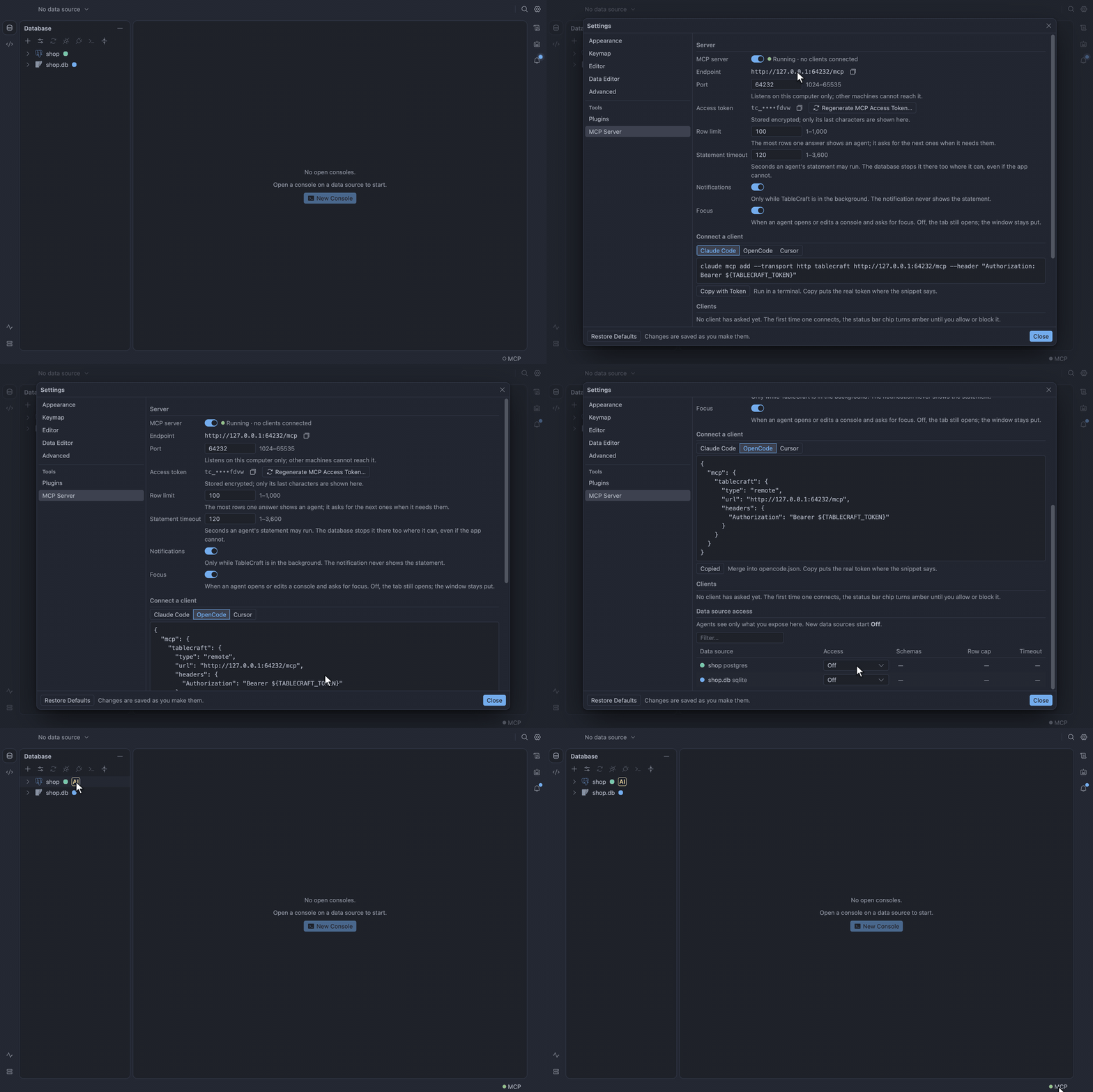
Section titled “Connect an agent”- Open Settings → MCP Server, or click the robot button on the right edge of the window.
- Turn on Let AI agents reach TableCraft.
- Under Connect a client, pick your client and click Copy with Token.
- Paste the configuration into your client’s MCP settings.
The clipboard now holds the client’s configuration with its token. The window never shows the token itself.
Access levels
Section titled “Access levels”Each data source starts Off for agents. Pick its level in the Data source access table of Settings → MCP Server:
- Off: agents do not see the data source. Use it when the data source should stay out of agents’ reach.
- Ask before reads: agents browse schemas, tables, columns and key names. Every query that returns rows, and every key value, waits for you to allow it, and writes are refused. Use it when the rows themselves are sensitive.
- Read only: agents list schemas and tables, describe a table, read its DDL, run
SELECTs, and explain and format SQL. Their statements run in a read-only session, and anything else is refused. Use it when an agent only needs to read. - Ask before writes: everything Read only allows, and the agent can also propose one change at a time, which runs only after you allow it. Use it when you want an agent to fix data while you check each statement.
Two rules cap the level. A data source marked read-only stays at Read only. One coloured red can be raised past Read only only on its own page in the Data Sources dialog.
Requests
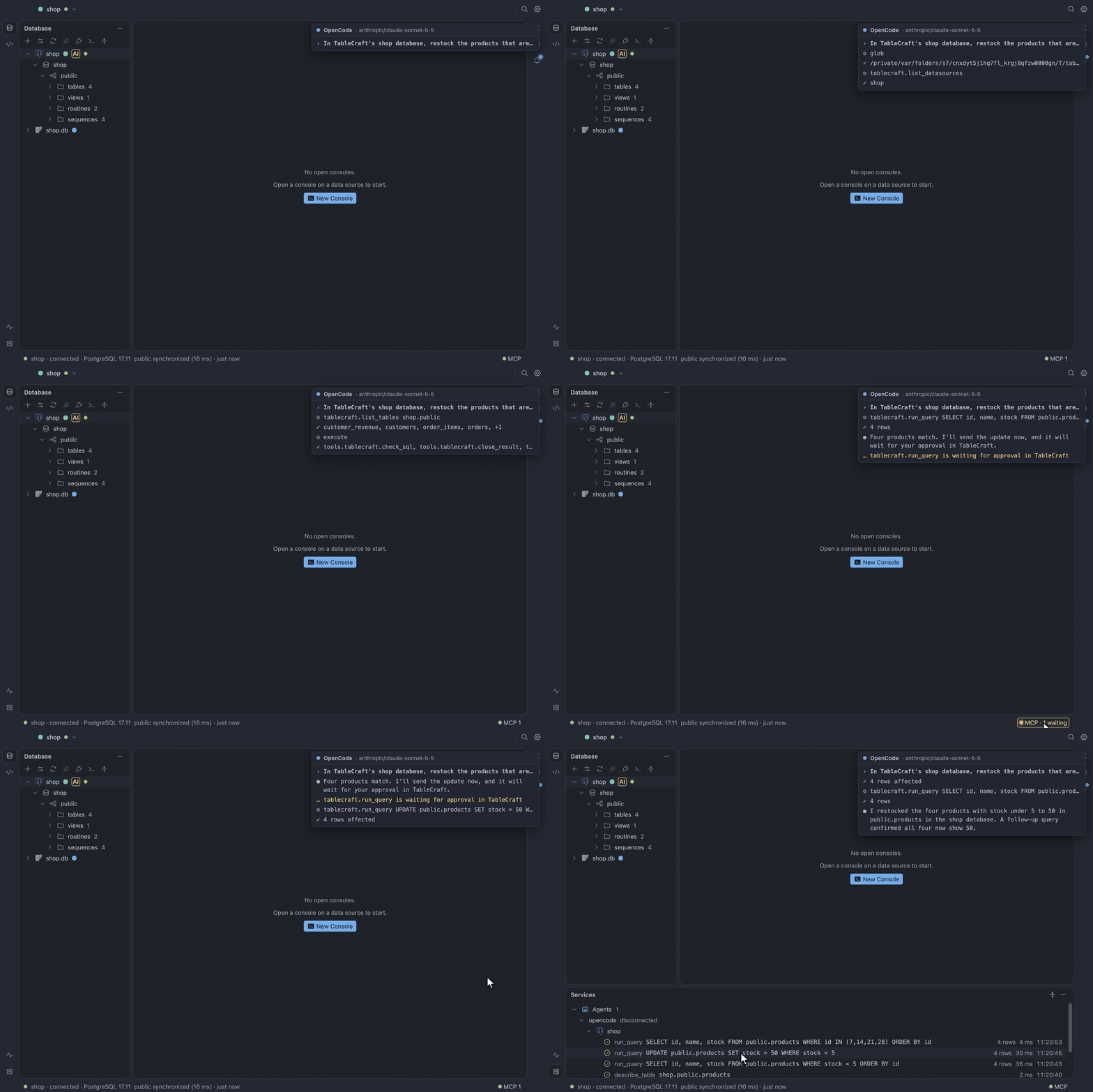
Section titled “Requests”When an agent asks for something its level does not allow on its own, the MCP chip in the status bar turns amber with its dot pulsing. Nothing runs until you answer. A request left unanswered for a minute is denied.
Allow a statement
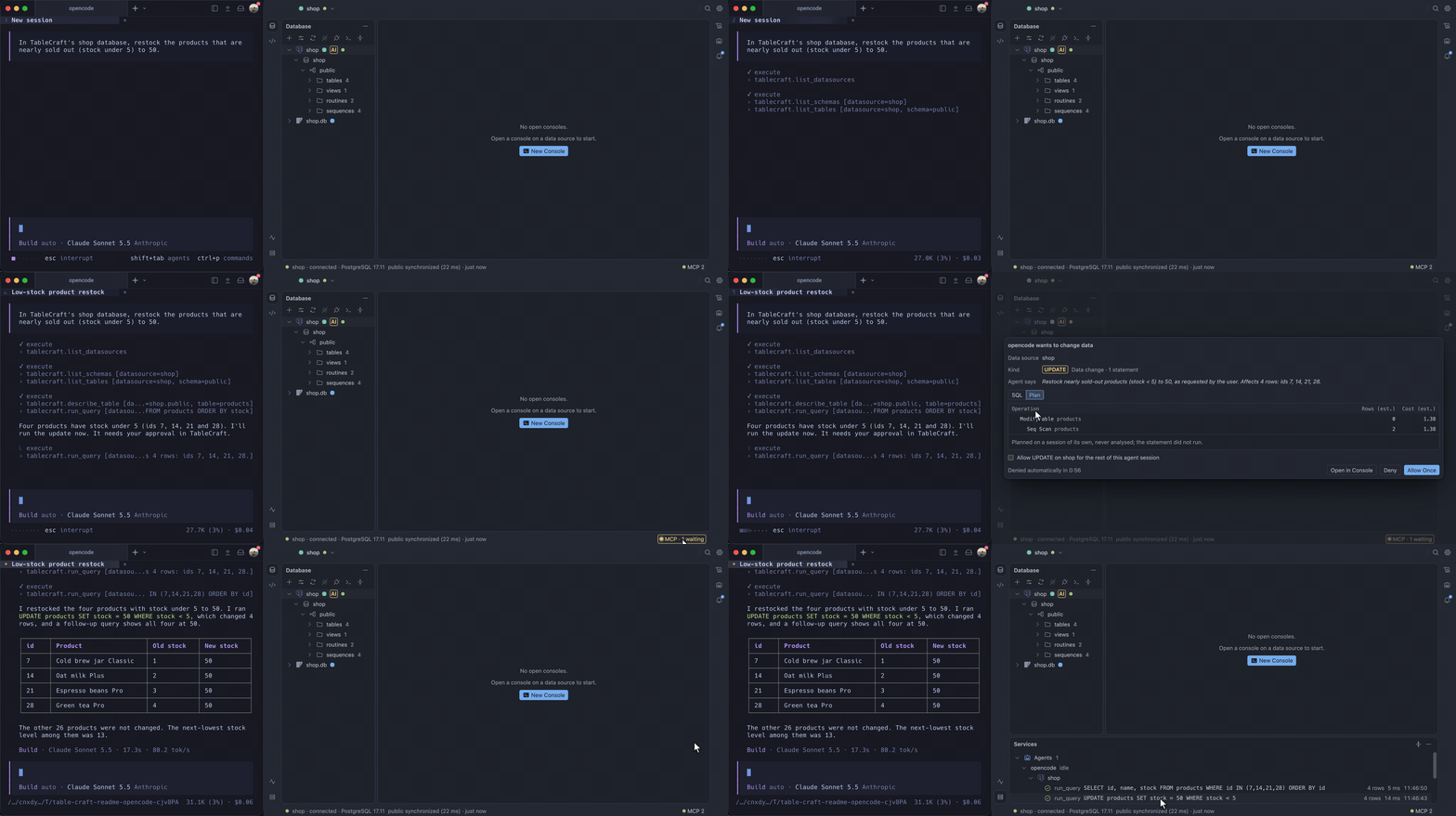
Section titled “Allow a statement”- Click the amber MCP chip to open the request.
- Read the statement and the agent’s reason for it.
- Click Allow Once.
The statement runs and its result goes back to the agent. Click Deny to refuse it instead. A write request can go to Open in Console, where you run it yourself.
Check the plan before you answer
Section titled “Check the plan before you answer”While a statement waits, click Plan in the request. It shows how the database would run the statement, without running it, and marks steps such as a full table scan or, on TiDB, estimates made without statistics. The request keeps waiting until you answer.
Read the statement as the agent sent it
Section titled “Read the statement as the agent sent it”The request lays the statement out with the formatter and your Reformat Code settings, and highlights it. Turn Format off to read it as the agent sent it, which is always what runs. The next request opens the same way.
Results and limits
Section titled “Results and limits”An answer carries at most mcp.rowCap rows, and the agent pages further with fetch_rows. When the
statement carries its row limit in its SQL, rows past the ones TableCraft
holds mean running it again up to the last row asked for. That page waits for you at every access
level, and Allow re-runs lasts the rest of the agent’s session.
A statement running past mcp.statementTimeoutSeconds is stopped, by the database too where it
can, even if TableCraft cannot reach it. Passwords never leave TableCraft. Every agent statement is
kept in the query history, tagged with the client’s name.
Clients
Section titled “Clients”The first call from a client you have not met turns the chip amber. Open it and choose Allow or Block. A call left unanswered for a minute is refused. Settings → MCP Server lists the clients you answered, where you can flip or forget each one.
Notifications
Section titled “Notifications”While a request or a new client waits and TableCraft is in the background, a system notification names the client, the data source and what it asks, and the dock icon counts what waits. Clicking the notification brings the window forward with the request open, and you answer there. The notification never shows the statement, the key or the agent’s reason.
Turn off notifications
Section titled “Turn off notifications”Clear Notify me when an agent waits for an answer in Settings → MCP Server
(mcp.notifications). Your system’s notification settings apply too.
Per data source
Section titled “Per data source”Beside the access level in Data source access, three fields narrow what agents get from one data source:
- Schemas: the schemas agents list and read. Blank keeps the schemas the Database pane shows.
- Row cap: overrides
mcp.rowCap. - Timeout: overrides
mcp.statementTimeoutSeconds. The (i) before it says what really stops a statement there, from the server the data source last connected to. It is amber when some statements keep running past the limit, and ringed when TableCraft has not seen the server yet.
Besides the catalog and query tools, agents can:
- search tables and columns by name across the schemas you show them (search catalog, which skips system schemas unless the agent names one),
- check SQL against the inspections,
- hand a statement to a new console for you to run (open in console, which never runs it),
- read the focused console when its data source is exposed,
- scan and read Redis keys,
- read
tablecraft://<data source>/<schema>/<table>resources and two prompts.
Consoles an agent opens
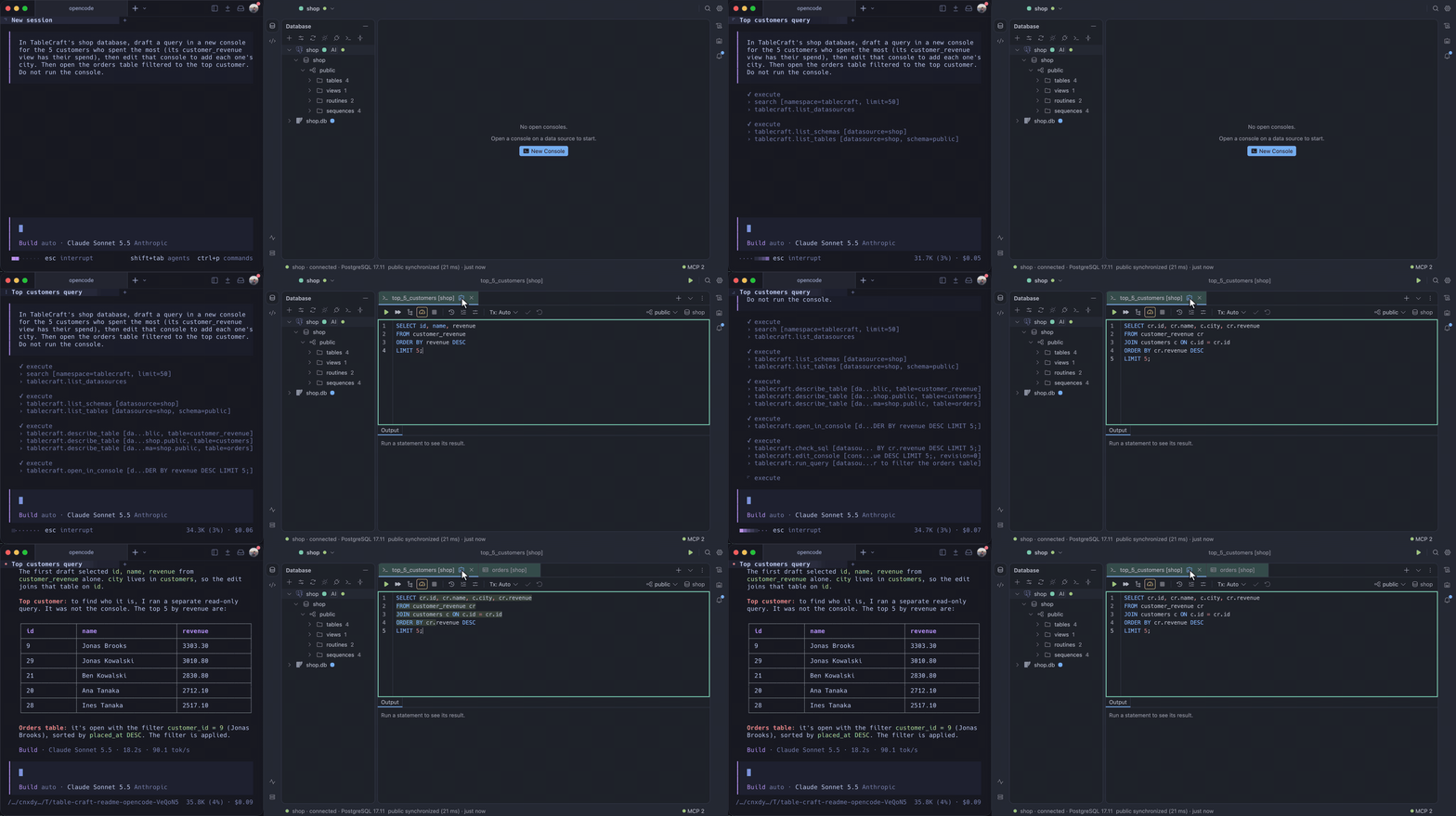
Section titled “Consoles an agent opens”open in console can name the console, set its schema and bring the window forward. The tab carries a robot icon while the agent stays connected, and only that agent can read or change it. edit console swaps exact text or the whole text, and refuses when you typed in the meantime and its text no longer matches. Each edit is one undo step, and nothing in the console ever runs.
Agents can also open a table’s data, filtered and sorted, and select a table or column in the Database pane. On a data source set to ask before reads, the filter is only typed into the bars for you to apply.
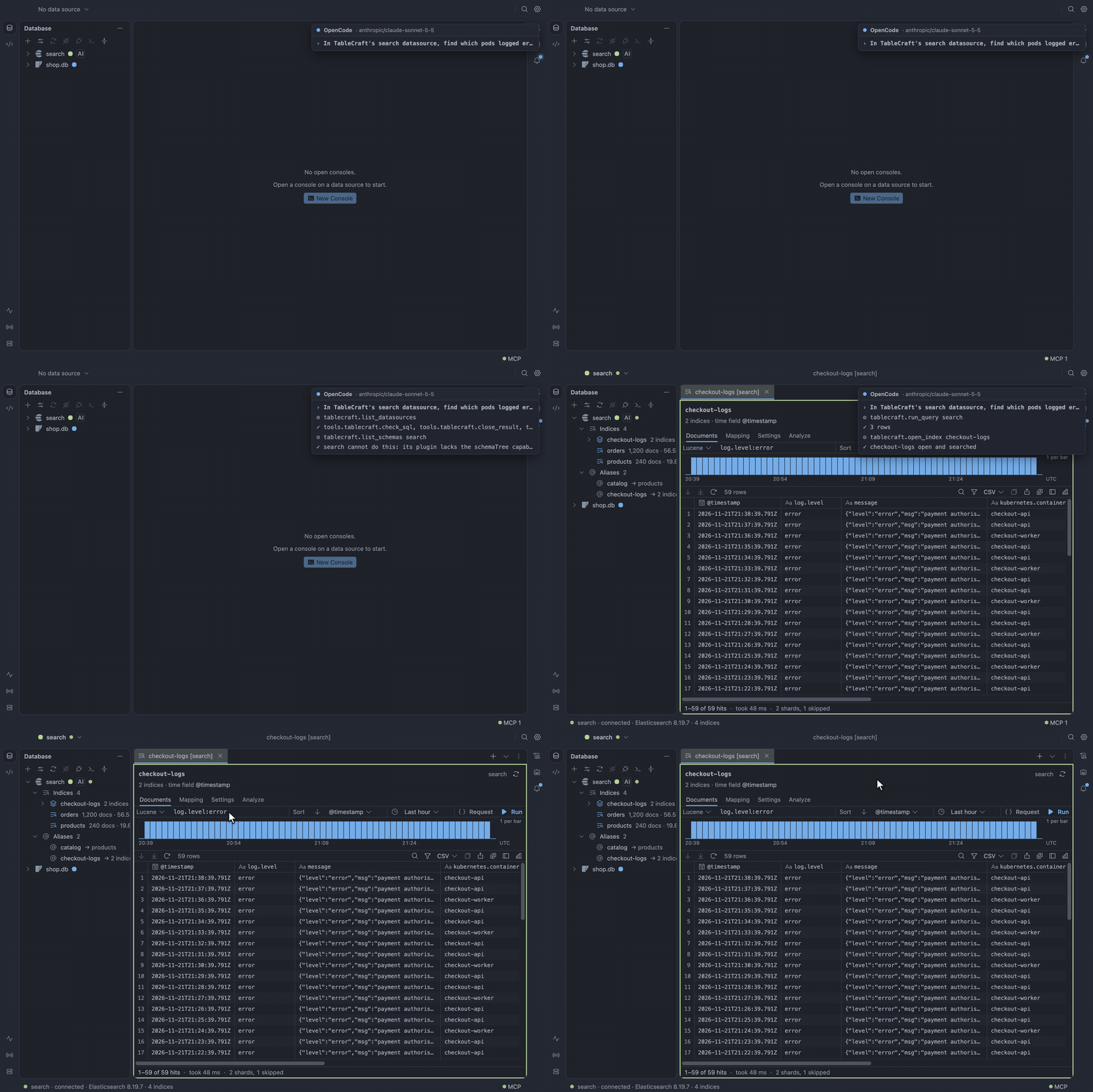
On Elasticsearch and OpenSearch, agents open an index in the index view with a query, a sort and a time range, and change them by asking again. A range with both ends shows as a custom range in the time menu. The hits stay on your screen, and on a data source set to ask before reads the query bar is only filled in for you to run.
Keep the window where it is
Section titled “Keep the window where it is”Turn Let agents bring TableCraft forward off in Settings → MCP Server (mcp.allowFocus).
Watching
Section titled “Watching”The MCP chip’s popover lists connected clients and their last call, with Pause, Agent Activity and Settings. Agent Activity holds every call of this run, filtered by client and outcome.
- Services shows an Agents node with each statement still running and a Cancel.
- A call’s time leaves out the wait for your approval. Hover it, or read Agent Activity, to see how long it waited.
- Query History filters by All, Me or Agents.
- The Database pane marks exposed data sources with AI while the server runs.
Logging
Section titled “Logging”The app log keeps each agent run across restarts: the client connecting and leaving, every call with its whole statement, outcome and time, and every approval asked and its answer. To read it, choose Show Agent Log in Agent Activity, on the Services Agents node or in the command palette. It opens the Log on agent runs.