
Connections
A data source holds what TableCraft needs to reach one database. You create and edit them in the Data Sources dialog, import them from other database tools, and export them to share.
Add a data source
Section titled “Add a data source”The Data Sources dialog lists your data sources on the left and edits the selected one on the right. Besides the connection fields, each one has a name, a folder, a comment, a read-only switch and a colour for its tabs.
Connect to a database
Section titled “Connect to a database”- In the Data Sources dialog, click Add data source.
- Pick the database.
- Fill in the connection fields.
- Click Test Connection. It shows the server version and the round trip time.
- Click OK.
The dialog saves the data source and closes. To fill in the fields at once in step 3, paste a
connection URL into the URL row or into Host, such as
postgresql://alice:secret@db.example.com:5432/sales?sslmode=require.
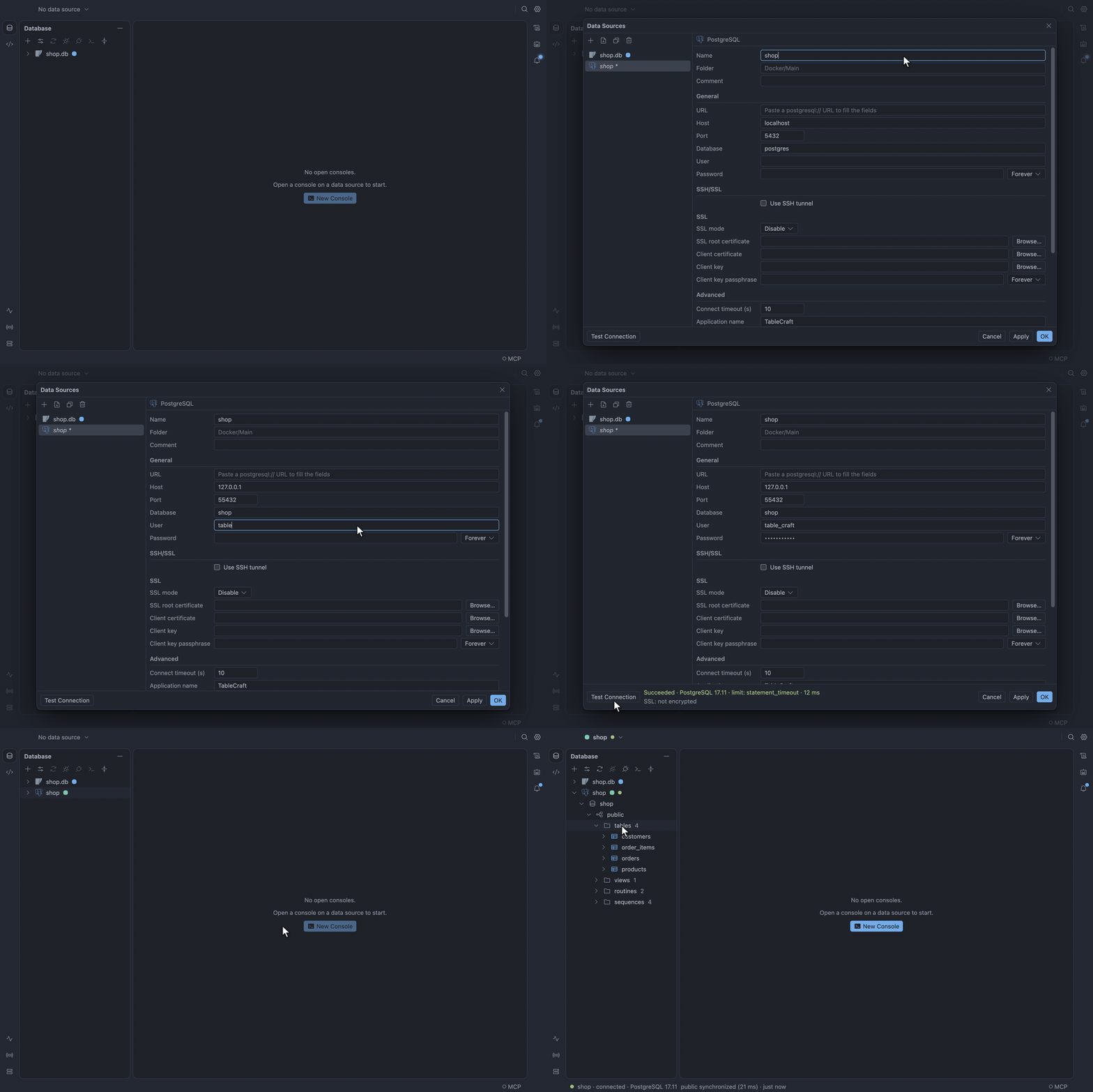
SQL Server also takes a JDBC URL, and SQLite a file path. Copy as URL in a data source’s context menu gives you the URL back, without the password.
Passwords
Section titled “Passwords”Each password has a save mode:
- Forever: kept encrypted in the operating system’s keychain.
- Until restart: kept in memory.
- Never: asked for on every connect.
Passwords are never written to datasources.json.
If you leave a Forever or Until restart password blank, TableCraft asks for it on connect and saves it once the connection works. For a server with no password, choose No auth (Redis) or None (etcd) under Authentication.
SSH tunnel
Section titled “SSH tunnel”PostgreSQL, MySQL, Oracle and SQL Server can connect through an SSH bastion.
Connect through a bastion
Section titled “Connect through a bastion”- In the SSH/SSL section, tick Use SSH tunnel.
- Enter the bastion’s host, port and user.
- Sign in with a password, a private key (OpenSSH or PEM) or the running SSH agent.
- Click Test Connection.
Test Connection reports each hop. Host and Port above stay the database’s address as the bastion sees it.
Trust a bastion’s key
Section titled “Trust a bastion’s key”The first time you reach a bastion, TableCraft shows its key fingerprint and asks whether to trust
it. Keys in ~/.ssh/known_hosts are already trusted. If a bastion’s key changes, TableCraft refuses
to connect.
The SSL rows in the same section set how the connection is encrypted:
| Mode | What it checks |
|---|---|
| Disable | Nothing; the connection is not encrypted |
| Require | Encrypts, but does not check the certificate |
| Verify CA | The certificate is signed by the CA you trust |
| Verify full | Also that the certificate was issued for the host name |
Use your own certificates
Section titled “Use your own certificates”Point SSL root certificate at the server’s CA file. If the server signs users in by certificate, also set Client certificate and Client key. TableCraft reads the files on every connect, so a renewed certificate needs no edit.
Timeouts and dropped connections
Section titled “Timeouts and dropped connections”Connections send a TCP keepalive every 30 seconds (change it under Advanced). An idle console checks its session before the next run and reconnects if it dropped. A running statement fails within one keepalive interval when the network goes away.
Set a statement timeout
Section titled “Set a statement timeout”A statement timeout cancels a console statement that runs too long. Set it in Settings → Editor → Running, or for one data source under Advanced. Tick Also have the database stop it so MySQL, MariaDB, TiDB or PostgreSQL stop the statement even when TableCraft cannot reach the server.
Exports and imports ignore the statement timeout.
TableCraft never replaces an open transaction silently. If its connection drops, the error tells you its changes are gone.
Import from DataGrip, TablePro, MySQL Workbench or Beekeeper Studio
Section titled “Import from DataGrip, TablePro, MySQL Workbench or Beekeeper Studio”TableCraft can copy your connections from these apps. It only reads their files.
Import connections
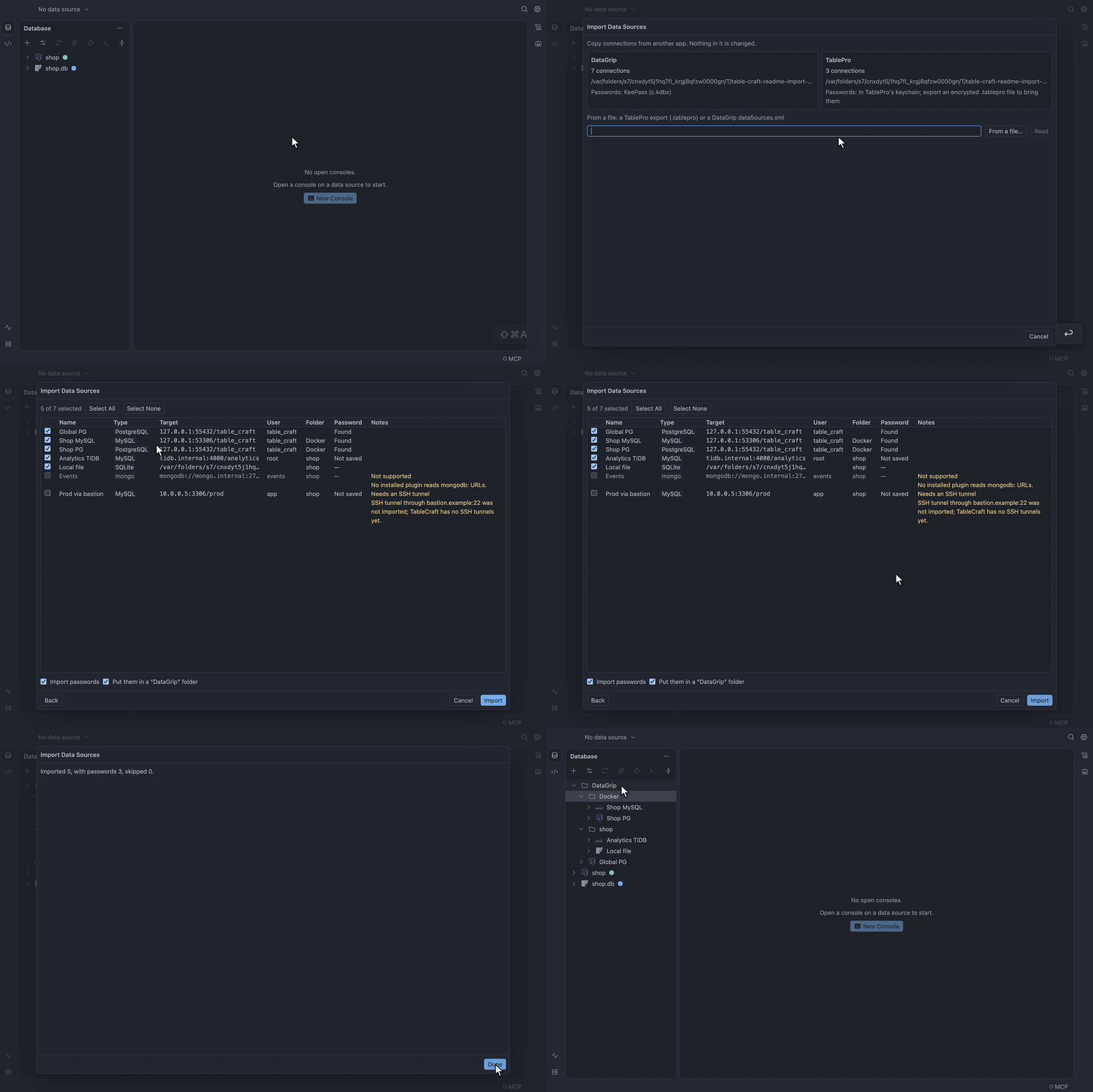
Section titled “Import connections”- Choose File → Import Data Sources…, or click the import button beside Add in the Data Sources dialog.
- Pick an app TableCraft found on this computer, or click From a file… to choose an exported file.
- Tick the connections to bring over. Each row shows the address, user, folder and where the password comes from.
Folders, colours and SSH tunnels come along, inside a folder named after the app. A connection you already have starts unticked. A database type with no TableCraft plugin is listed as not supported, and one whose plugin is not installed yet offers Install.
When TableCraft finds connections at launch, the notification bell offers to import them.
Bring the passwords along
Section titled “Bring the passwords along”How passwords come along depends on the app:
- DataGrip and MySQL Workbench: read from the system keychain or DataGrip’s KeePass file. On
macOS, click Allow (not Always Allow) for each one. On Linux, install
libsecret-tools. Workbench passwords on Windows cannot be read. - TablePro: export the connections from TablePro as an encrypted
.tableprofile with passwords, then import that file and type its passphrase. - Beekeeper Studio: decrypted from its
app.dbwithout asking.
Untick Import passwords to bring none. A data source without a password asks for it on connect.
Check what does not import
Section titled “Check what does not import”A few connections do not import fully:
- MySQL Workbench socket connections are not supported.
- An SSL mode of Preferred imports as Disable, so choose Require afterwards to keep encryption.
- A Beekeeper connection through a jump host comes without its tunnel.
- Only Beekeeper’s local workspace is read.
Export and share data sources
Section titled “Export and share data sources”Export to a file
Section titled “Export to a file”- Select data sources or folders in the Database tool window, right-click, and choose Export Data Sources….
- Choose the selection or every saved data source.
- To include passwords, tick Include passwords and type a passphrase of at least 8 characters.
TableCraft writes tablecraft-datasources.json with folders, colours, comments, timeouts and SSH
tunnels. Passwords are encrypted with the passphrase, which TableCraft does not store, so send it to
the other person separately.
To import the file, choose File → Import Data Sources… → From a file…. Agent access is never imported; turn it on in the data source’s properties.
Copy and paste data sources
Section titled “Copy and paste data sources”To share quickly, Copy Data Sources (Mod+C in the Database tool window) copies the selection
without passwords. Paste Data Sources (Mod+V) in any TableCraft window opens the import list.