SQL console
A console is an editor tab where you write and run SQL against one data source. Consoles save themselves as you type.
Run statements
Section titled “Run statements”Run a statement
Section titled “Run a statement”Press ⌘↩ to run the statement at the caret, or exactly the selected text. Press ⇧⌘↩ to run the
whole console.
Each result opens in its own tab next to Output. Output logs every statement with its row count, time and any warnings the server returned. While a statement runs, the title bar shows its elapsed time, with Cancel when the database supports it.
Confirm a risky statement
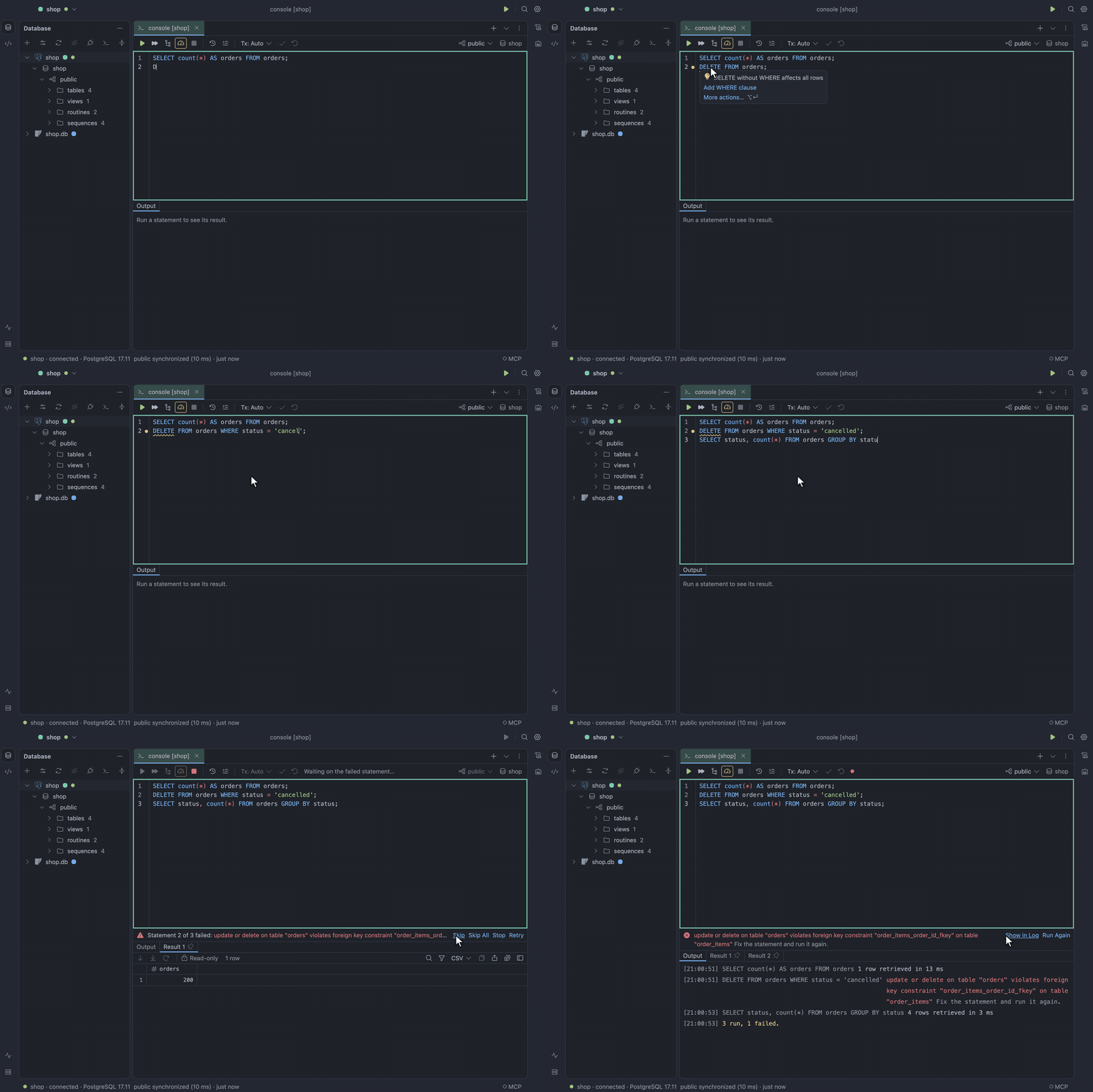
Section titled “Confirm a risky statement”TableCraft asks you to confirm an UPDATE or DELETE without a WHERE, a DROP or a TRUNCATE
before it runs.
Fill in parameters
Section titled “Fill in parameters”A statement with :name, ? or (on PostgreSQL) $1 placeholders asks for their values first. The
driver binds them, so they are never pasted into the SQL.
Transactions
Section titled “Transactions”Work in a transaction
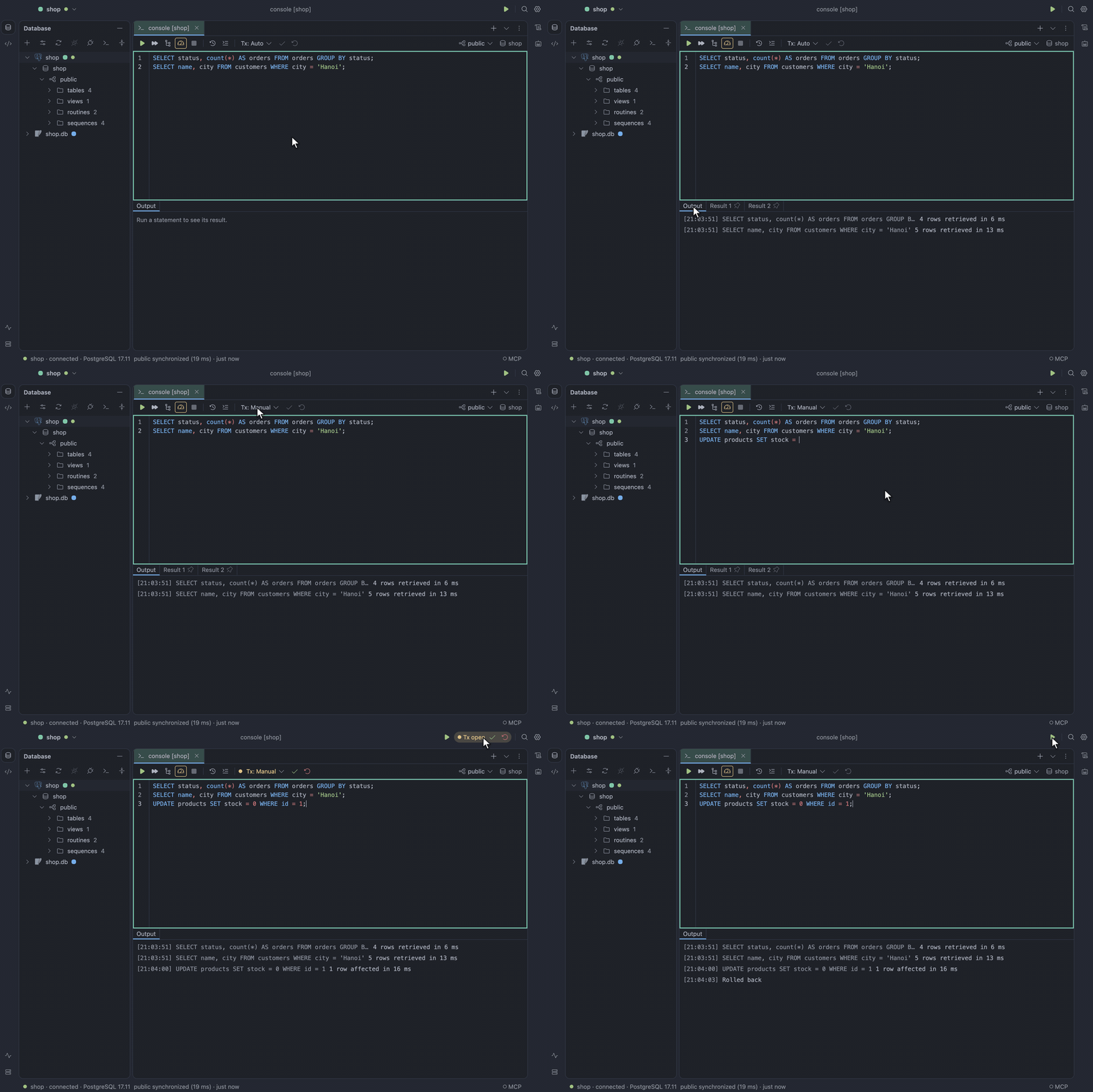
Section titled “Work in a transaction”- On the console toolbar, switch Tx: Auto to Tx: Manual.
- Run your statements.
- Click Commit or Rollback.
While a transaction is open, the mode turns amber and the title bar shows Commit and Rollback, so you can end it from any tab.
When a statement fails
Section titled “When a statement fails”The console underlines where the database says the statement went wrong. The error appears above
the results with Go to Error and Run Again, and F2 and ⇧F2 step through the marks.
Decide what happens to the rest of a run
Section titled “Decide what happens to the rest of a run”When one of several statements fails, the run asks whether to Skip it, Skip All failures, Stop or Retry. To decide in advance, set When a statement fails in Settings → Advanced → Running.
Inspections
Section titled “Inspections”As you type, the console checks your SQL without running it:
- Errors such as an unknown column are underlined in red.
- Risky code such as a
DELETEwithoutWHEREis underlined in amber. - Redundant code is greyed out.
Fix or suppress a problem
Section titled “Fix or suppress a problem”Hover a mark for its message, or press ⌥↩ at the caret for fixes. Suppress for statement adds
a -- noinspection <Id> comment above the statement.
To turn checks off, open Settings → Editor → Inspections.
Reformat code
Section titled “Reformat code”Reformat Code (⌥⌘L) formats the selection or the whole console, and one ⌘Z undoes it.
Queries get an aligned layout, with list items, AS aliases and AND/OR conditions lined up.
Reformatting works while the data source is disconnected.
Open a SQL file
Section titled “Open a SQL file”Open File… (⌘O) opens .sql files from disk, such as your project’s migrations. Each file
remembers its data source and schema, and File → Recent Files lists the last ten.
Open a file from your system
Section titled “Open a file from your system”TableCraft also opens .sql files from your system: Open With in Finder or Windows Explorer,
your Linux file manager, or TableCraft report.sql in a terminal. The file opens as a file console
in the running window, beside the tabs you left open, on its remembered data source or else the one
in focus.
TableCraft is offered as an alternative app and never sets itself as the default. To make it the default, choose it yourself in your system’s file settings.
Save a console to a file
Section titled “Save a console to a file”A file console saves as you type. Save (⌘S) or Save As… (⇧⌘S) writes a scratch console
to a file. When another program changes the file, the console reloads it, or asks first if you have
unsaved edits.
Run SQL scripts
Section titled “Run SQL scripts”To run .sql files without opening them, right-click a data source or schema in the Database pane
and choose Run SQL Script…. The files are streamed, so a large dump does not fill memory.
Progress shows under SQL Scripts in Services, where you can cancel the run. Failures ask Skip, Skip All, Stop or Retry, as in a console.
Tabs and split view
Section titled “Tabs and split view”Close, rename or pin a tab
Section titled “Close, rename or pin a tab”Right-click an editor tab to close, duplicate, rename or pin it. Reopen Closed Tab (⇧⌘T)
brings back closed consoles, newest first.
Work in two consoles side by side
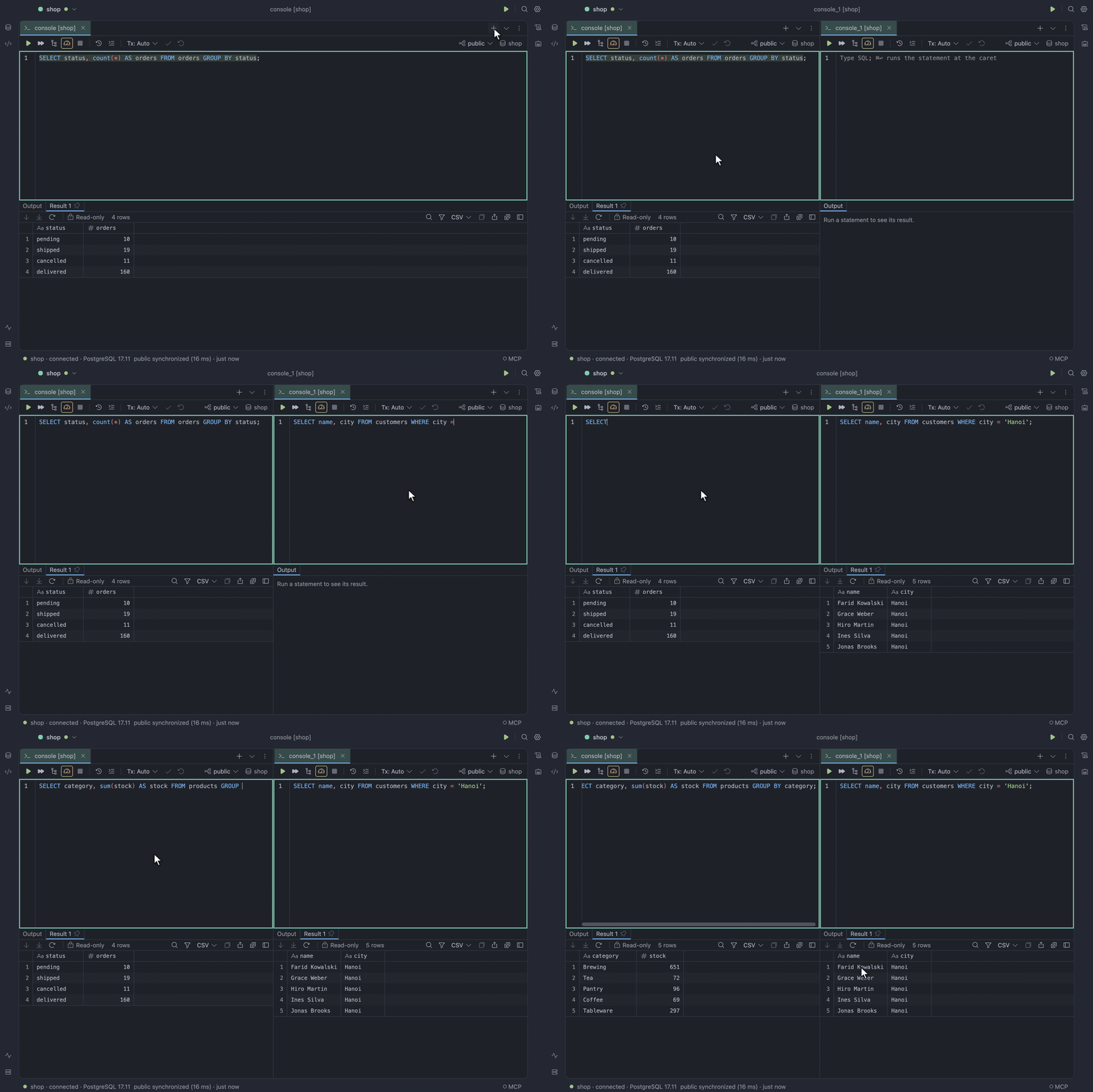
Section titled “Work in two consoles side by side”Drag a tab to the left or right edge of the editor, or right-click it and choose Split Left or Split Right. Each side has its own toolbar, runs and results. Click inside a side to send Run and shortcuts there. Unsplit brings all tabs back together.
Find and replace
Section titled “Find and replace”Find in Console (⌘F) opens a find bar above the text, and Replace in Console (⌘R) adds a
replace row. Selecting several lines first limits the search to the selection.
| Shortcut | What it does |
|---|---|
⌥C, ⌥W, ⌥X |
Match case, whole words, regex |
⌥P |
Preserve case: Customer replaced with client gives Client |
↩ / ⇧↩, or ⌘G / ⇧⌘G |
Next and previous match |
⌥⌘↩ |
Replace all, in one undo step |
⌥⇧⌘J |
Put a cursor on every match |
Esc |
Close the bar |
Run settings for one console
Section titled “Run settings for one console”Run Settings…, the gear on the console toolbar, changes how this console runs without touching Settings:
- Rows: the page size, or All to read the whole result when it opens.
- Statement timeout: from 1 to 86,400 seconds, or None. It wins over the data source’s timeout.
The settings last until you close the console, and a dot on the gear shows they are set. Restore Defaults goes back to Settings.
Explain
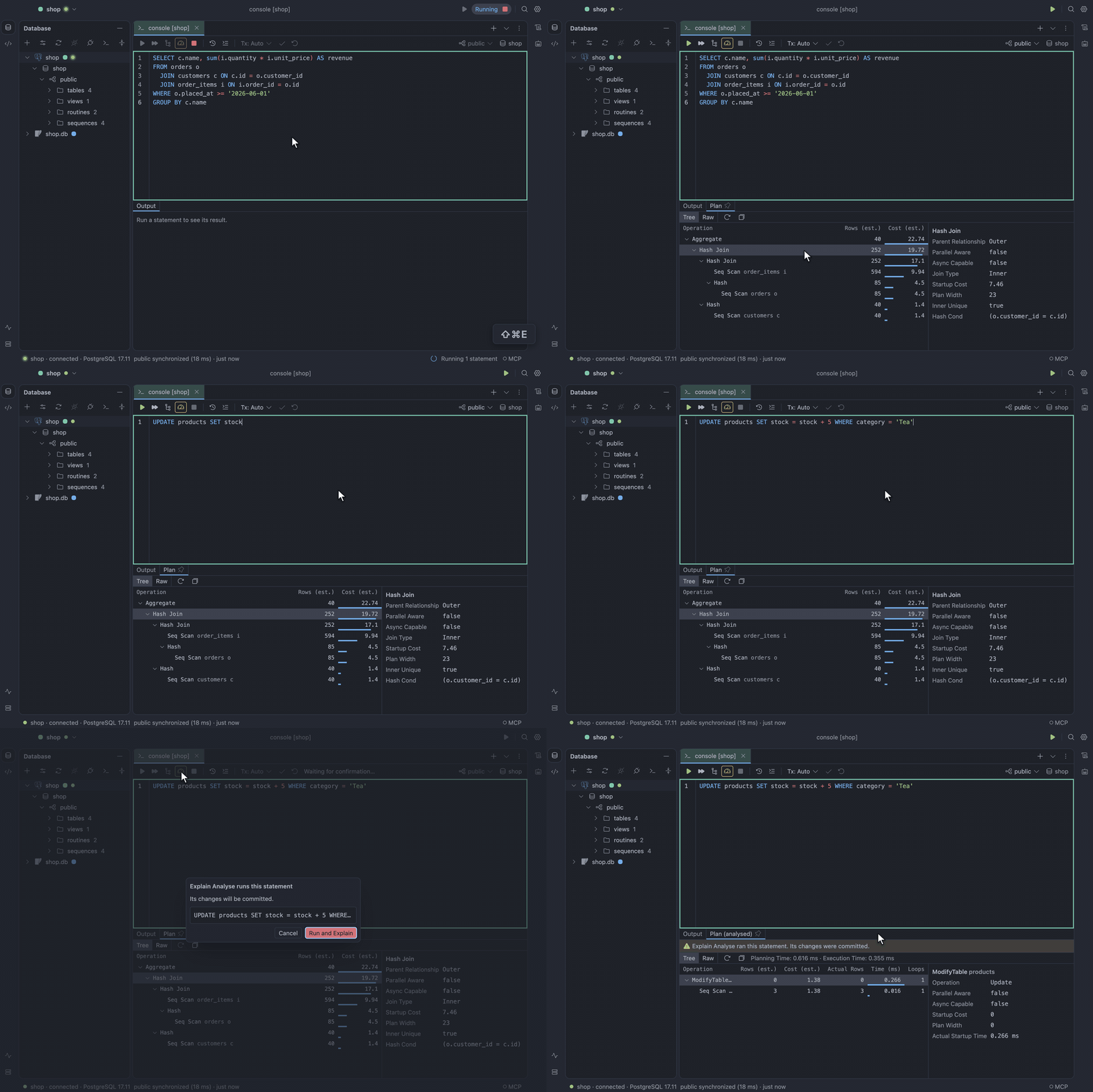
Section titled “Explain”Both commands work on the statement at the caret:
- Explain Plan (
⇧⌘E): shows how the database would run the statement, as a tree with estimated rows and cost. Use it when you want the plan without running the statement. - Explain Analyse: runs the statement and adds actual rows, time and loops. It asks first when the statement writes. Use it when you need real timings and can afford to run the statement.
PostgreSQL, MySQL, TiDB and Oracle support both. Oracle’s Explain Analyse needs
SELECT_CATALOG_ROLE. SQLite has Explain Plan only.