
Redis
The Redis plugin connects to Redis 5.0 or later, as a single server, through Sentinel or as a cluster, and downloads the first time you add a Redis data source. Each database lists its keys in the Database pane, a key opens in its own tab, and the console runs commands.
Connect
Section titled “Connect”Pick the Mode in the connection form:
- Standalone: one server. A
redis://orrediss://URL fills a standalone one in. - Sentinel: the Sentinels tell TableCraft where the master is.
- Cluster: TableCraft reaches the cluster from its seed node.
Authentication is User & Password or No auth. Pick No auth for a server without
requirepass, and TableCraft stops asking for a password at every connect. Redis 5.0 has no ACL
users: leave Username empty and give the password alone.
Map node addresses
Section titled “Map node addresses”When the nodes of a cluster, or the master and replicas of a Sentinel setup, announce addresses you
cannot reach, map each one in Node address map: 10.0.1.5:6379=127.0.0.1:7001, ….
Connect through Sentinel
Section titled “Connect through Sentinel”- Set Mode to Sentinel.
- In Host and Port, name one Sentinel (usually port 26379), and list the rest in Other
sentinels:
10.0.1.6:26379, 10.0.1.7:26379. - In Master name, type the name the Sentinels monitor.
- Fill in Username and Password for the master. When the Sentinels have a login of their own, fill in Sentinel username and Sentinel password too.
At connect, TableCraft asks the Sentinels for the master and opens your sessions there with Username and Password. The replicas are listed under Nodes, and Run on sends a read to one of them.
After a failover, the next command reconnects to the new master on its own. A command that reached
the old master as it was demoted fails with READONLY, and runs on the new one when you run it
again.
Key tree
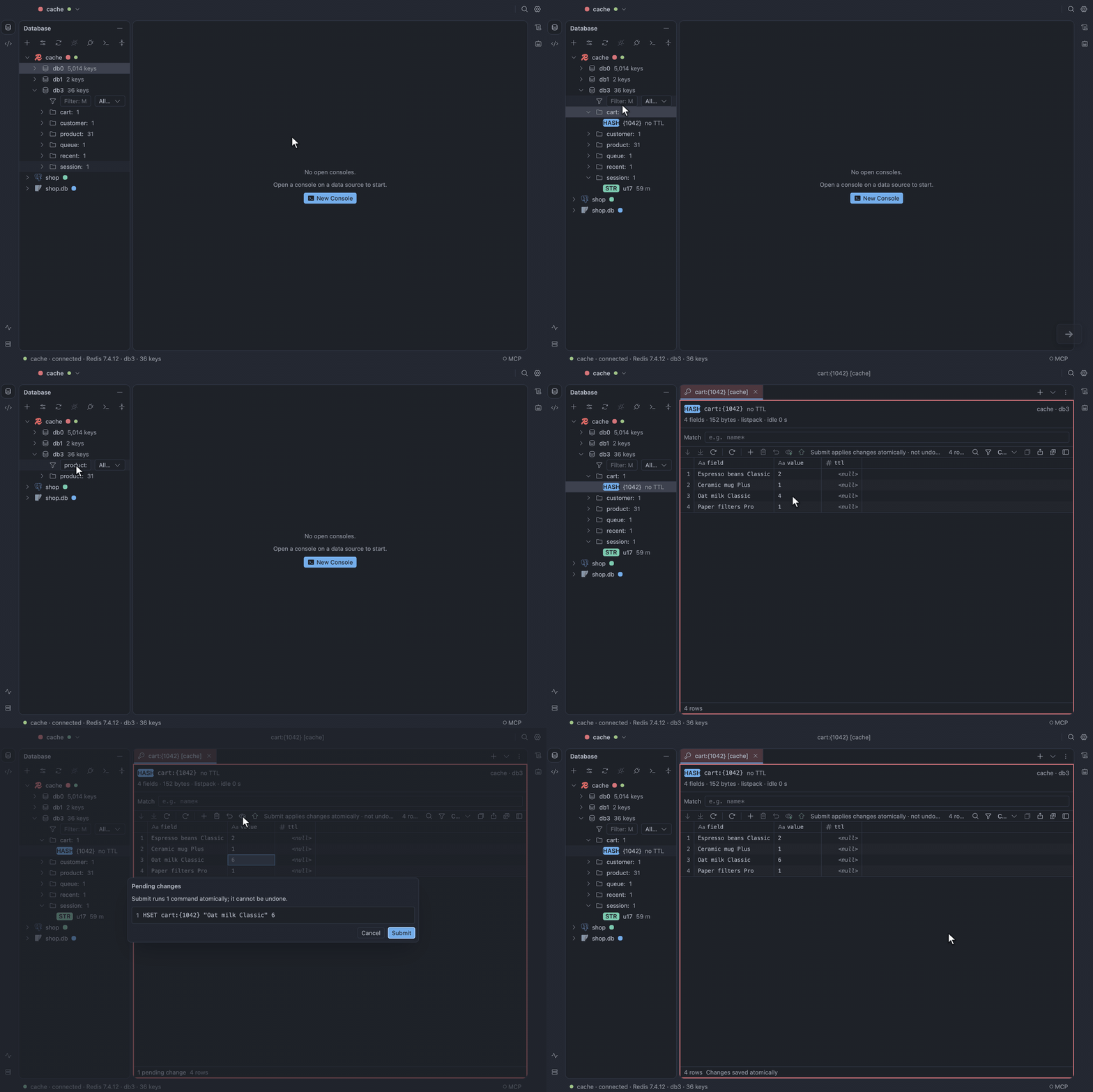
Section titled “Key tree”Each database lists its keys in folders split on :, with a type badge and TTL. The tree scans
10,000 keys at a time behind a Load more row, never with KEYS.
- To filter the tree, type a
MATCHpattern and pick a type in the filter row. - To open a key by name, choose Go to Key…. Search Everywhere has a Keys tab too.
Scan a large server only when asked
Section titled “Scan a large server only when asked”On a large production server, tick Load keys only when asked under Options in the Data Sources
dialog. The tree then lists the databases and their key counts, and a database shows
Not scanned · ~48,213 keys · Scan until you choose Scan, filter or Load more.
Manage keys
Section titled “Manage keys”The key actions are New Key…, Rename, Delete, Set TTL…, Remove TTL and Delete Keys Under Folder…. Deleting under a folder runs as a task in Services, which you can cancel.
Key tabs
Section titled “Key tabs”A hash, list, set, sorted set or stream opens in the result grid with its own columns. A string opens in a value editor that reads it as Text, JSON, Hex, Base64, MessagePack or gzip. The header counts the TTL down and shows the key’s length, memory and encoding.
Edit a key
Section titled “Edit a key”- Edit cells, or add and delete rows.
- Choose Preview Pending Changes to read the commands.
- Click Submit.
The commands run as one MULTI. If another client changed the key since you read it, a banner
offers Reload or Overwrite.
Console
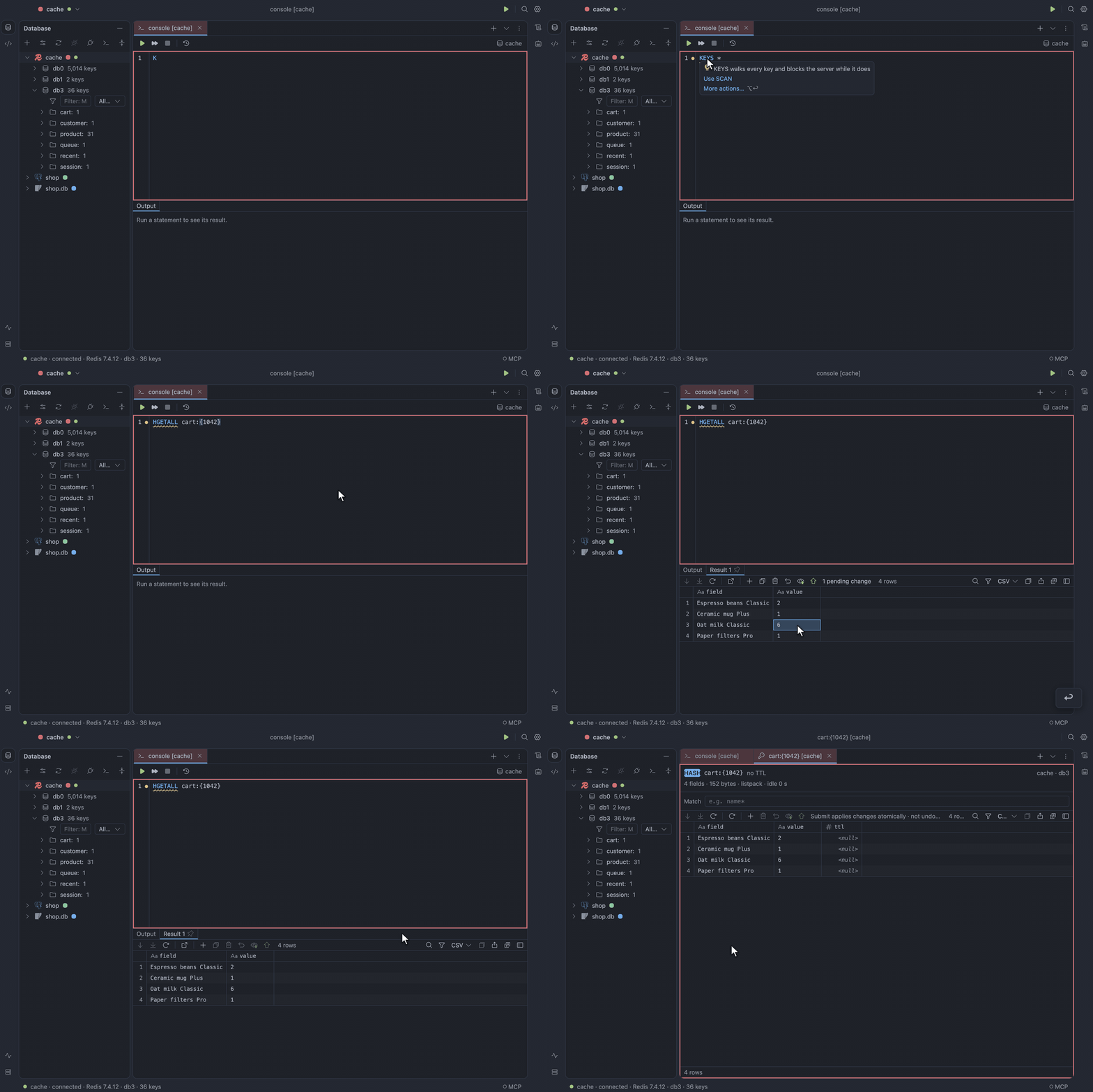
Section titled “Console”The console takes one command per line, with redis-cli quoting. Completion and signature help come
from the server’s command docs, and key names complete from a scan.
FLUSHDBandFLUSHALLask you to type the data source’s name.KEYSand other heavy reads are underlined, with a fix such as Use SCAN.- In a cluster, Run on sends a command to one node or to every primary. With Sentinel, it sends it to the master or to one replica.
Read console results
Section titled “Read console results”A value read (GET, HGET, LINDEX…) opens a one-row value tab as well as its Output line. A
number or a status stays in Output, where Show as Result opens it as a tab.
The value panel reads a result’s values the way the key tab does, Auto first (JSON, gzip,
MessagePack…), and remembers your format per key pattern. When a result reads one key, Open Key
(⌘B) opens it in a key tab.
Edit a console result
Section titled “Edit a console result”A result that reads a whole key (GET, HGETALL, SMEMBERS, LRANGE key 0 -1,
ZRANGE key 0 -1 WITHSCORES) takes edits with the key tab’s columns, and submits them as one
guarded MULTI. Other results say why they are read-only.
Server tab
Section titled “Server tab”The Server tab shows INFO as cards with auto-refresh, every node of a cluster or Sentinel setup at
a glance, and the slow log. To see who is connected, choose Show Sessions…: it lists
CLIENT LIST, and you can unblock or kill a client there.
Limits
Section titled “Limits”- A cluster cannot go through an SSH tunnel, and neither can a Sentinel setup.
- Redis versions before 5.0 are not supported, and 5.0 has no ACL users.
See Command consoles, Key browser and Server tab.